

Edit — transform existing photos
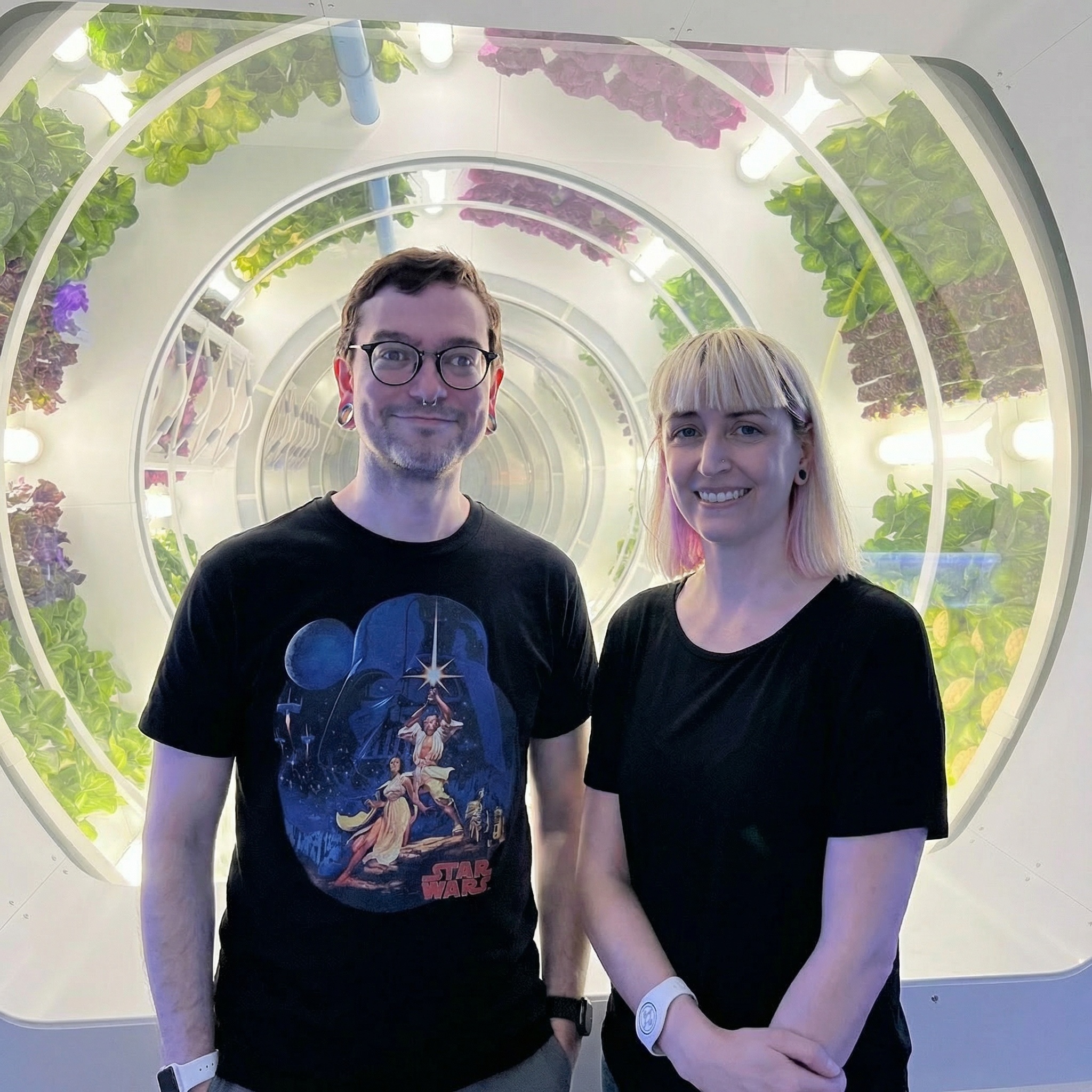
The/edit endpoint takes one or more input images and a text prompt, then produces a transformed version. When you
reference a profile, the person’s identity is preserved even through dramatic transformations.
 Before
 After
After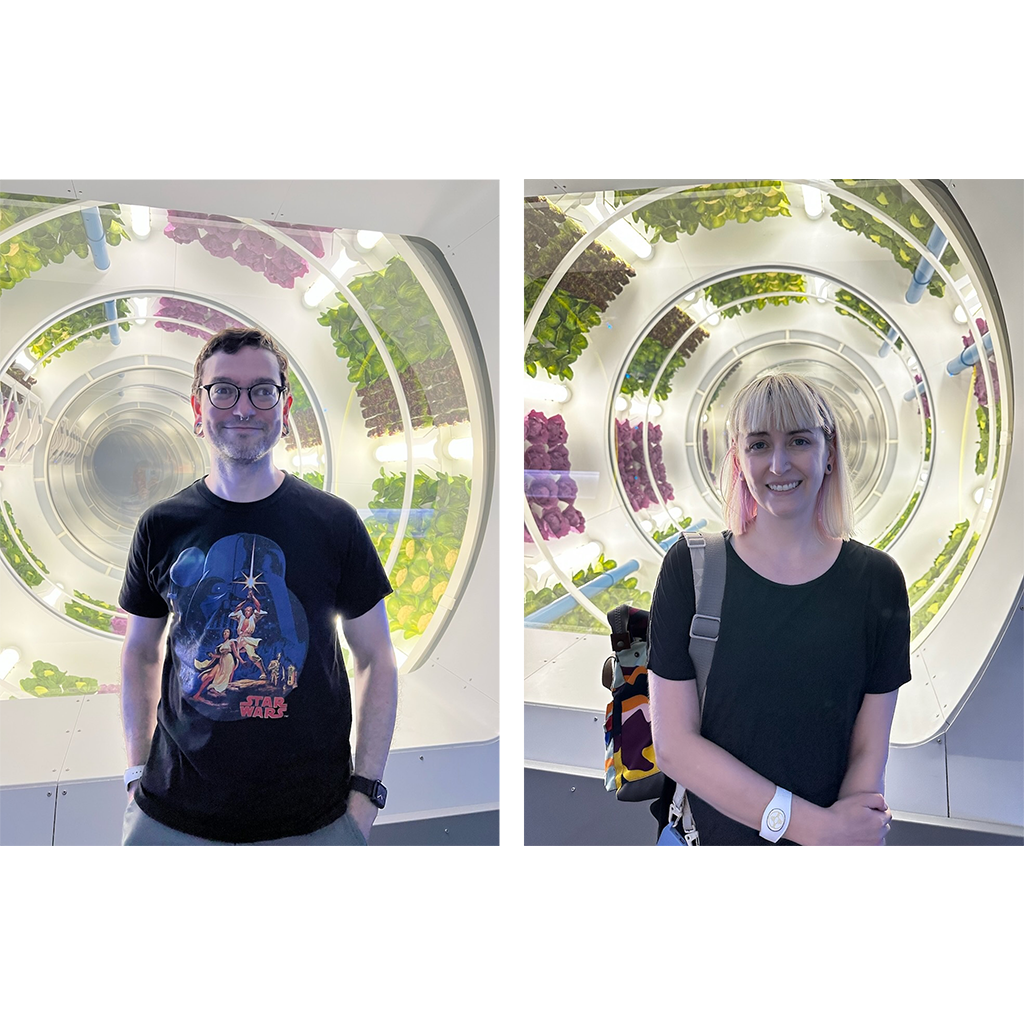 Before
 After
After Before
 After
Afterprofile_ids so the API knows which identities to preserve. The
API matches the people in the input photo to the provided profiles automatically. You can also use [[profile_id]] in
the prompt to reference a specific person explicitly, e.g. "Make [[abc123]] smile wider".
Example request body:
Generate — create new images from scratch
The/generate endpoint creates images from a text prompt alone — no input image is needed. When you reference a
profile, the generated person looks exactly like the actual person (or pet).
 Phota
Phota Phota
Phota Phota
Phota[[profile_id]] syntax.
Example request body:
The
/generate endpoint does not accept images or profile_ids. Reference profiles in the prompt with
[[profile_id]] syntax instead. If you need to transform an existing photo, use /edit.Enhance — automatic quality improvement
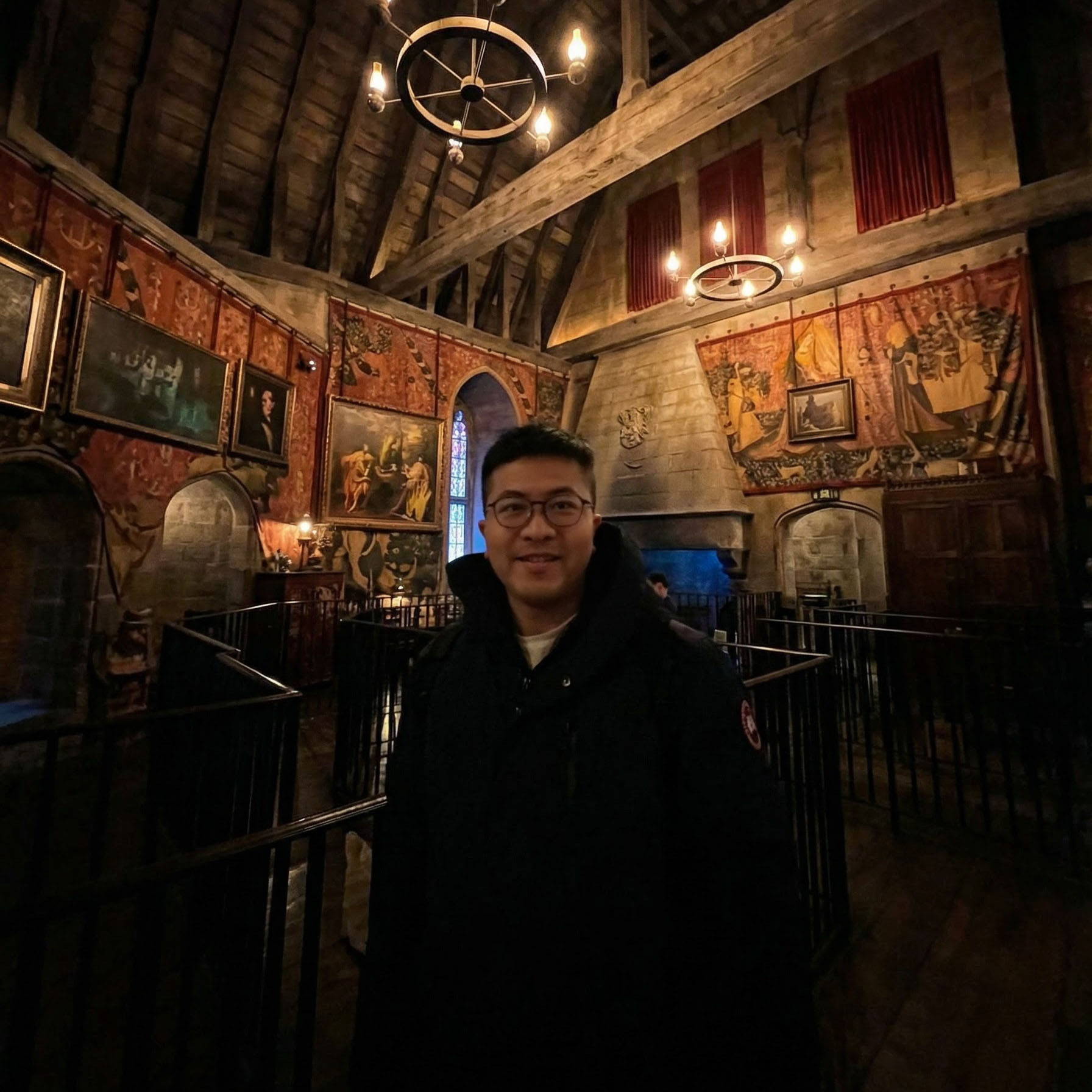
The/enhance endpoint improves a photo automatically — no text prompt required. Unlike most AI image
services, Phota infers all enhancement parameters on its own: lighting, sharpness, color balance, and overall quality.
An optional prompt lets you guide the enhancement when you want to.
 Before
 After
After Before
 After
After Before
 After
AfterRemix — restyle with a reference image
The/remix endpoint takes an input image (the content) and a reference image (the style), and produces your photo
rendered in the reference’s look — lighting, palette, mood, and artistic treatment. No prompt needed, though an
optional prompt can steer the result (second slide).
 Input
Input Reference
 Output
 Output
profile_ids and recognized people keep their real likeness through the
restyle.
Example request body:
Next steps
Profiles guide
Learn how to create and manage profiles for identity preservation.
Quickstart
Walk through the full workflow with code examples.
API reference
Explore the full endpoint documentation.