

What is a profile?
A profile is a learned representation of a specific person’s appearance. You create one by uploading reference photos of the same person — – for the default Full Train tier, or – for Quick Train (see Training tiers). Phota processes these photos to learn the subject’s facial features, hair, skin tone, and overall appearance. Once a profile is trained, you can use it across unlimited edit, generate, and enhance requests. The API preserves the person’s identity even through dramatic transformations — placing them on a beach, changing their outfit, or restyling the entire scene.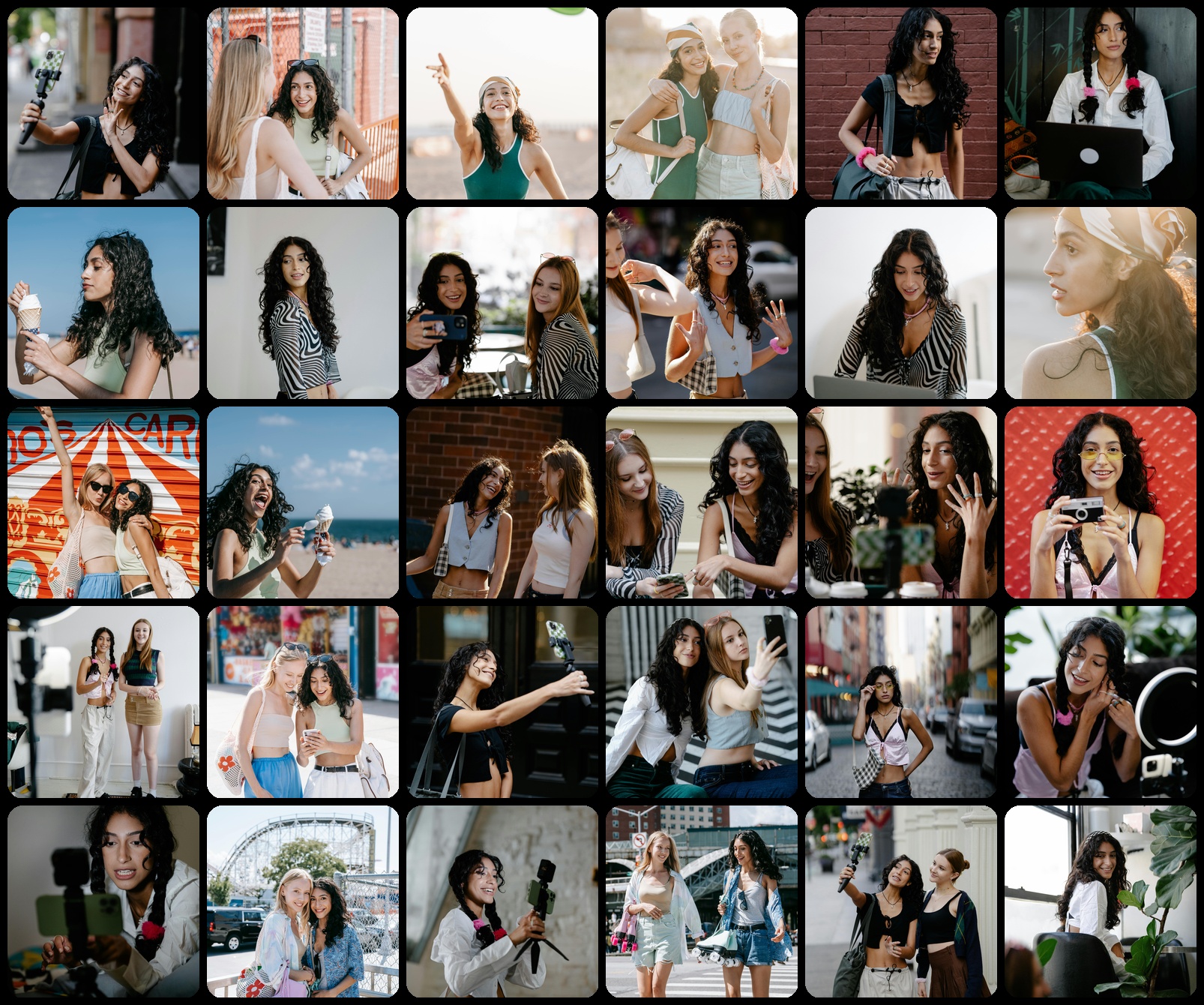 Upload – reference photos to create a profile (– for Quick Train). Group shots are OK as long as your intended subject is the
most common one across all photos.
Upload – reference photos to create a profile (– for Quick Train). Group shots are OK as long as your intended subject is the
most common one across all photos.How profiles work
Profiles work in two phases:- Training — you upload reference photos and the API learns the subject’s appearance (facial features, hair, skin tone, etc.).
- Inference — when you call
/edit,/generate, or/enhance, the API recognizes people in the input image (or described in the prompt) and decides which profiles from the candidate profiles to use to preserve their identities in the output. The fewer candidate profiles you pass, the easier it is for the API to match the right one. If a profile is not provided in the candidate profiles, the API will not consider it when matching.
profile_id -> you pass that profile in every edit or generation you run for them. Multi-person scenes work too —
reference multiple [[profile_id]] values in a single prompt.
Profile creation
Creating and using a profile follows this flow:1
Create the profile
Send the reference image URLs to
POST /profiles/add. Training starts immediately and runs asynchronously. You receive
a profile_id right away.2
Poll for training status
Call
GET /profiles/{profile_id}/status until the status is READY. Training typically takes ~20 minutes.3
Use the profile
Once ready, reference the profile in any edit, generate, or enhance request. See
Referencing profiles in requests below.
Tagging profiles
Tags let you group profiles by your own identifiers — for example, your end-user’s username or account ID. This is useful when your API key manages profiles for many end-users and you need to list only the profiles belonging to a specific one.Setting a tag
Pass the optionaltag field when creating a profile:
Backfilling tags onto existing profiles
Profiles created before you adopted tags can be tagged after the fact withPOST /profiles/tags. Send up to 1,000
assignments per request (each profile at most once per batch):
200 response reports
every outcome: updated counts the profiles tagged by this request, and the already_tagged (same value resubmitted),
conflicts (profile already carries a different tag, echoed as existing_tag), and not_found (unknown, deleted, or
not owned by your account) lists name the profiles that were left unchanged. Resubmitting the same mapping is safe, so
you can re-run a backfill after a partial failure. To find profiles that still need tagging, list your profiles with
GET /profiles/ids and collect entries whose tag is null.
Filtering by tag
Use thetag query parameter on GET /profiles/ids to retrieve only profiles with a specific tag:
tag parameter returns all profiles.
Referencing profiles in requests
There are two mechanisms for referencing a profile: theprofile_ids request field and inline [[profile_id]] prompt
syntax. In most cases you pick one, not both. If you do use both, the API merges them automatically — there’s no
benefit to duplicating the same ID in both places.
Your developer account holds all profiles, but only pass the ones belonging to the end-user whose photo is being
processed. This ensures correct identity matching and billing.
The profile_ids field (edit and enhance)
This array tells the API which profiles are available as candidates for the request — typically all profiles belonging
to a single end-user. The API matches the people in the input photo to these candidates automatically, so you don’t
have to name anyone in the prompt:
The [[profile_id]] prompt syntax (edit and generate)
Inline [[profile_id]] in the prompt attaches a profile to a specific phrase, so the model knows exactly which
person the prompt is talking about. This works with any number of subjects — a single reference is perfectly fine:
profile_ids field) and the clearest way to
refer to multiple people in one prompt:
[[profile_id]] appears in an edit prompt, it’s automatically merged into the profile_ids candidate list — you
don’t need to list the same ID in both places.
Every profile referenced in one request — via
profile_ids, [[profile_id]], or both — must share the same
model version. Mixing v1 and v2 profiles returns HTTP 400 with the error code
MIXED_PROFILE_MODEL_VERSIONS.Which should I use?
Either mechanism is enough on its own for
/edit. If you use both, the API merges them, so there’s no need to list
the same ID in both places.
Training tiers
Profile training has two tiers, selected with thetraining_tier field on POST /profiles/add:
Quick Train completes in ~3 minutes; Full Train completes in ~8 minutes (both excluding queue time). For the strongest profile, use Full Train with images.
Model versions
Profiles are trained on one of two personalization model versions, selected with themodel_version field on
POST /profiles/add:
A single account can hold profiles of both versions. Each
/edit, /generate, /enhance, or /remix request must
reference profiles of one version only — a request that mixes v1 and v2 profiles returns HTTP 400 with the error
code MIXED_PROFILE_MODEL_VERSIONS and lists which profiles belong to each version. If you are migrating an end-user
from v1 to v2, create new v2 profiles for all of them before combining them in a request.
Image requirements for training
- Full Train (
training_tier: "standard"): – images - Quick Train (
training_tier: "fast"): – images - Format: publicly accessible URLs (signed URLs work)
Tips for best results
Good photos
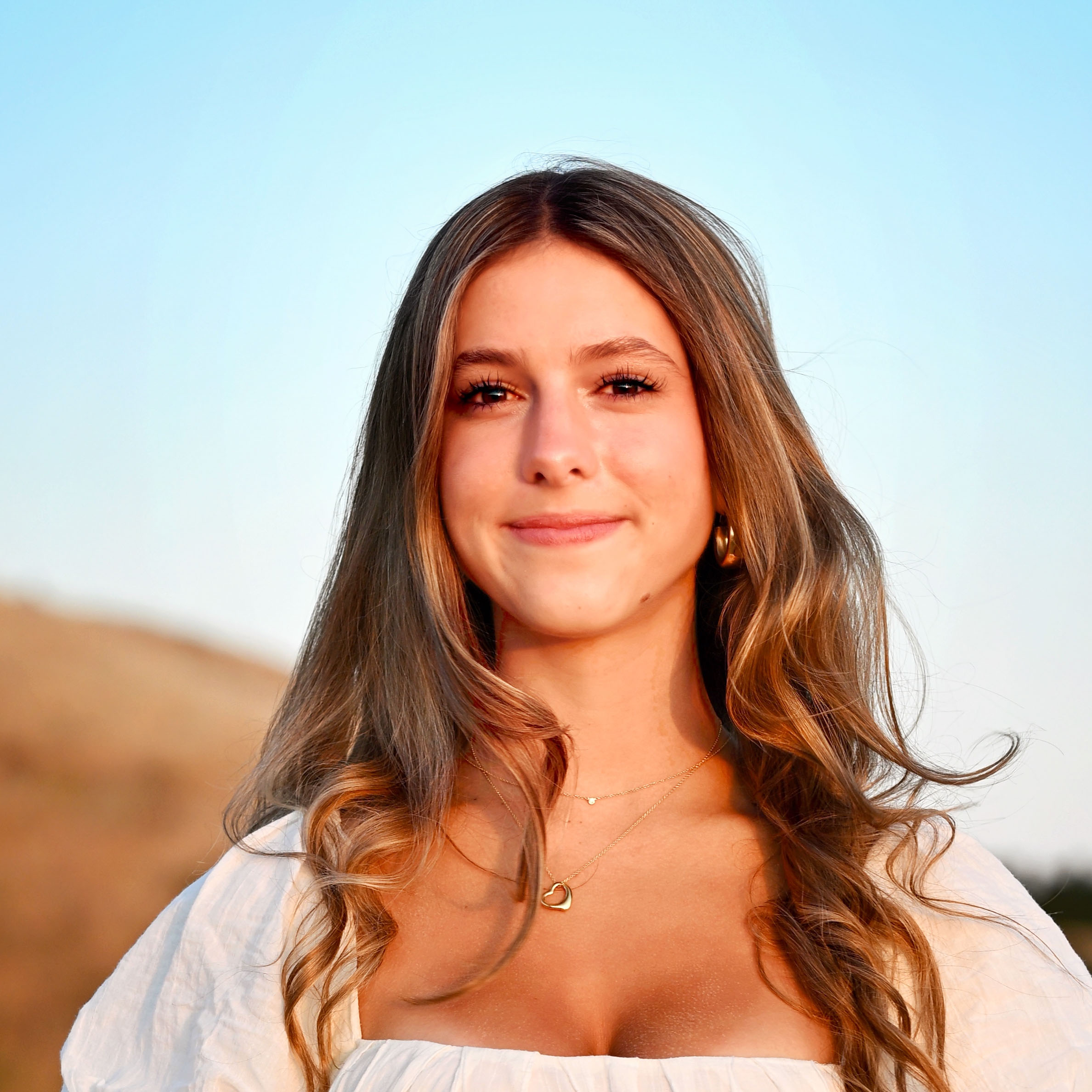
✅
Well lit and sharp
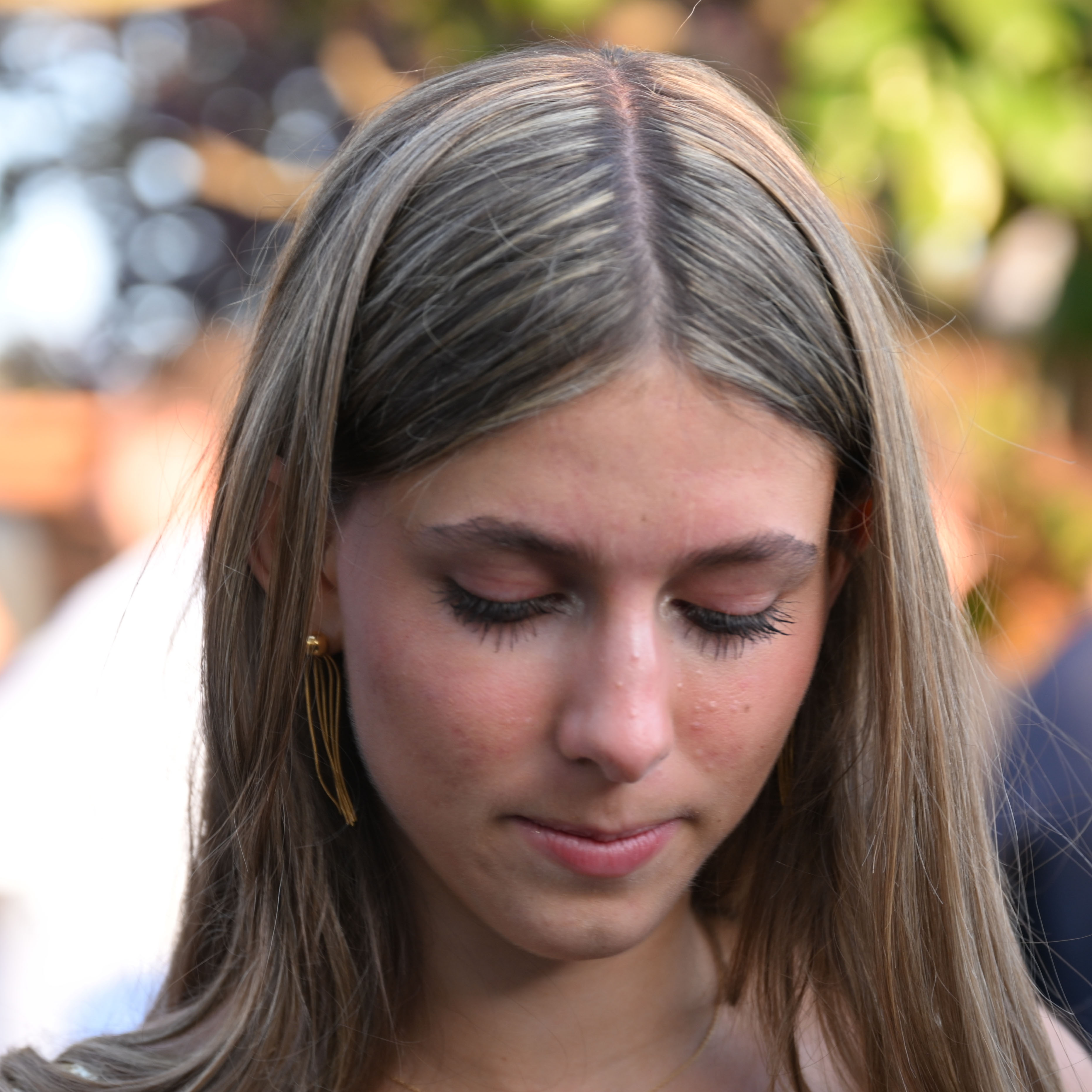
✅
Diverse expressions and angles

✅
Diverse poses
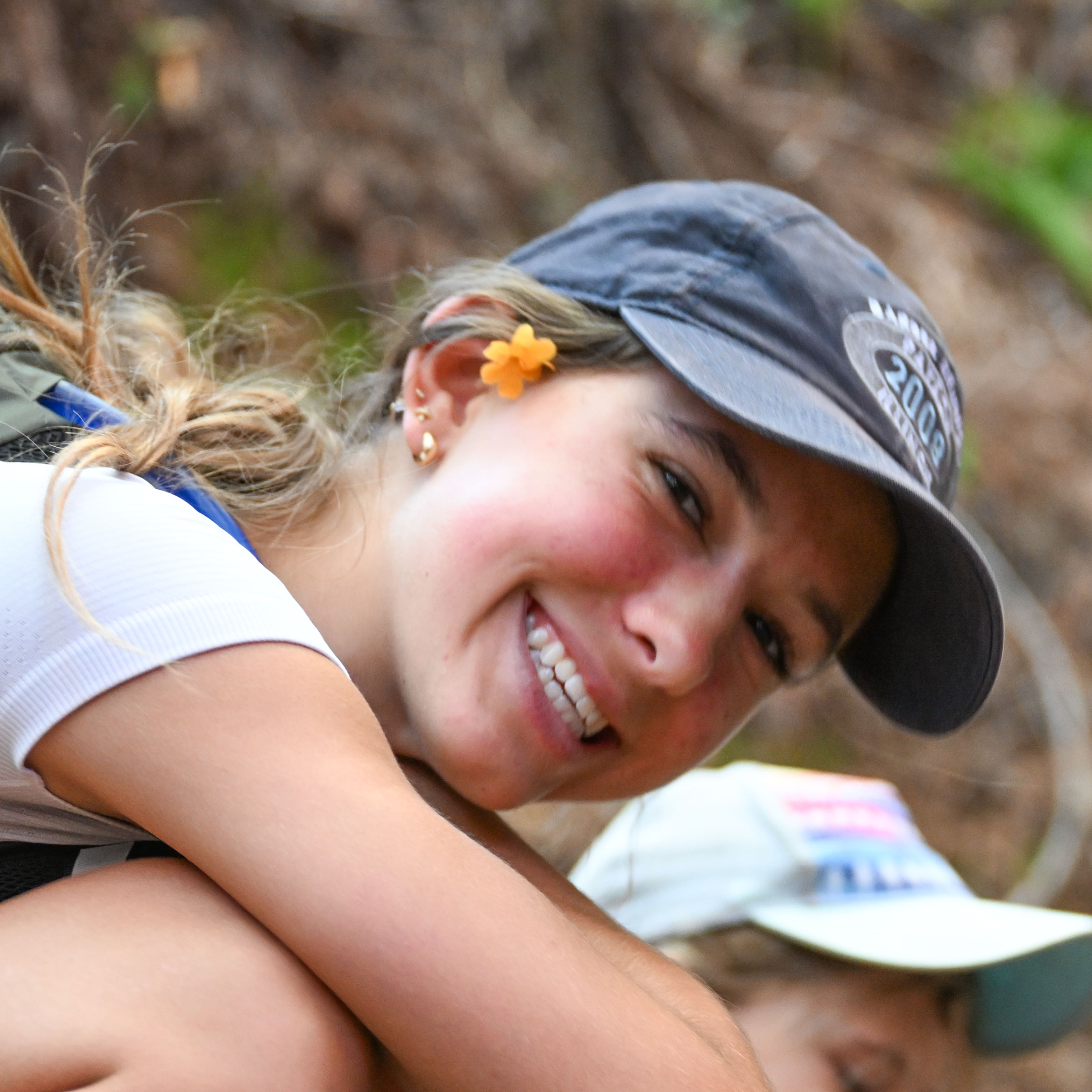
✅
Diverse accessories (face visible)
Bad photos

❌
Extreme poses
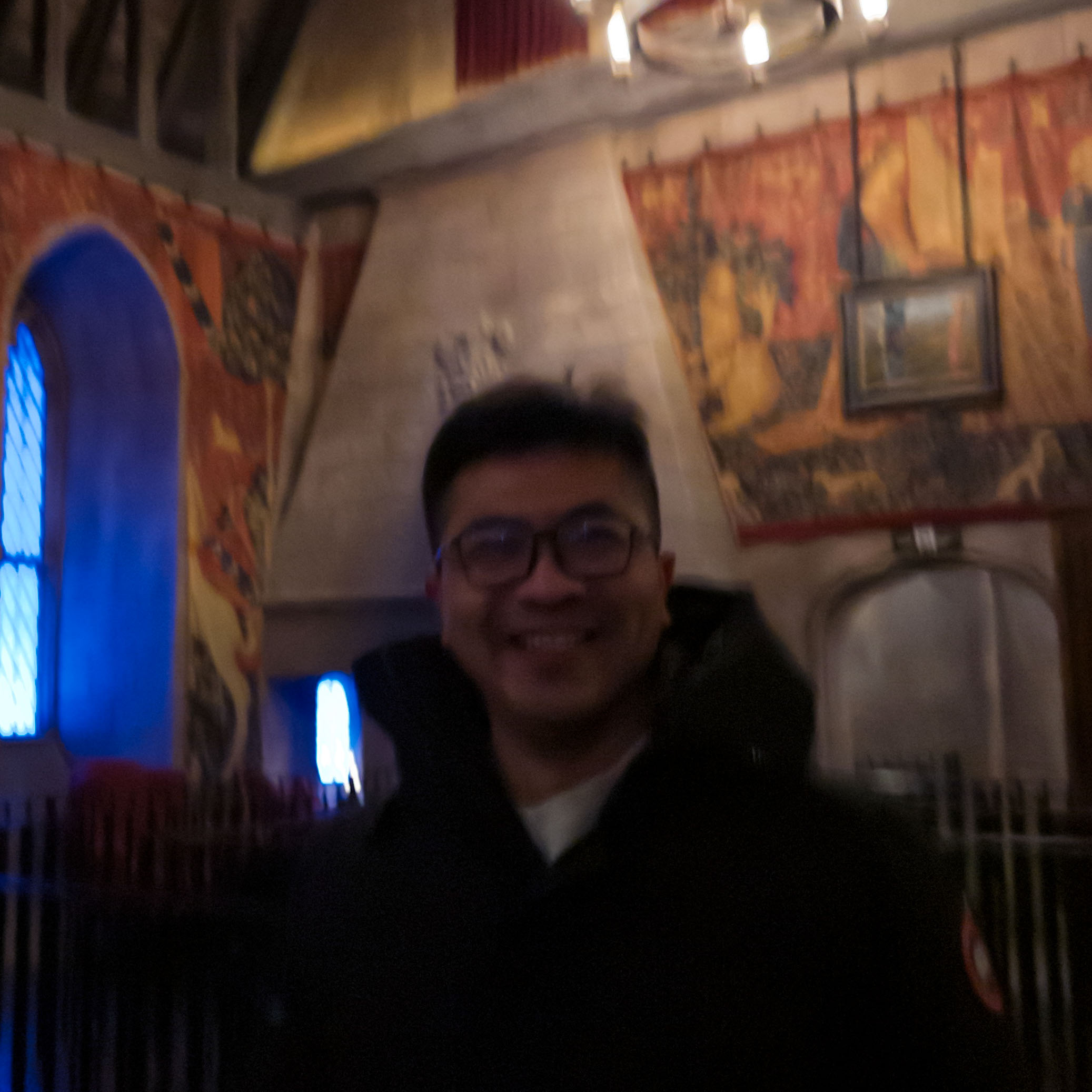
❌
Small, dark or noisy
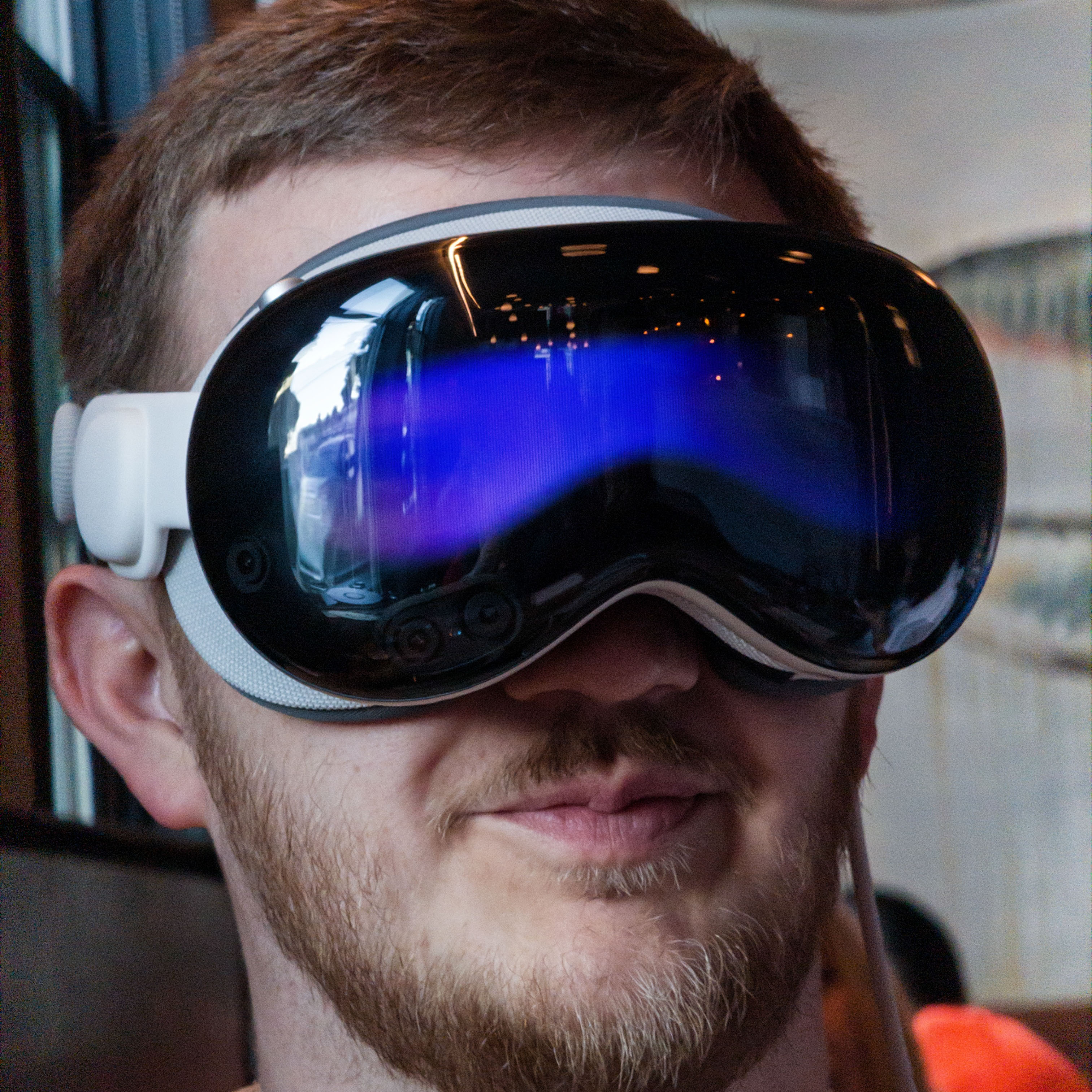
❌
Largely covered and occluded
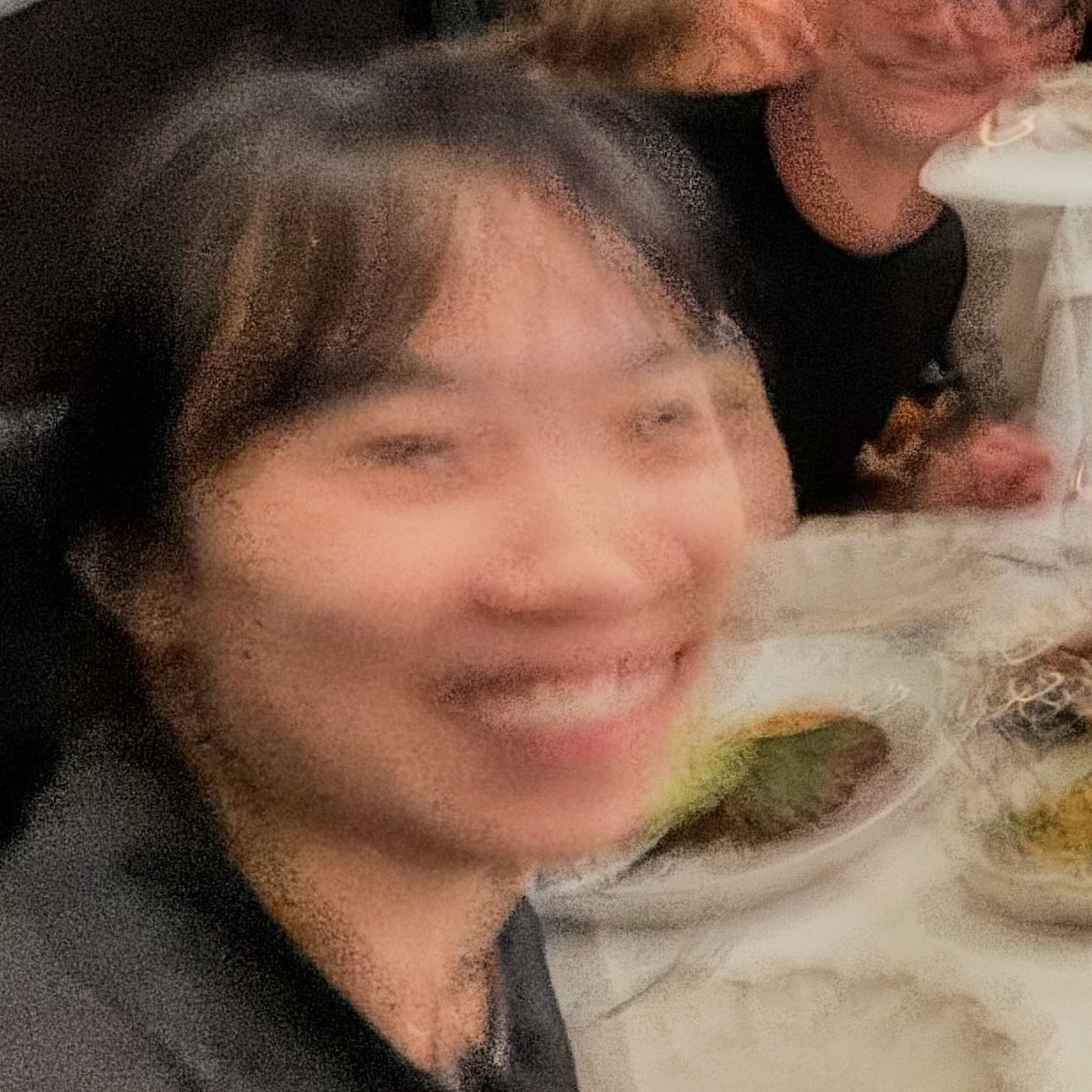
❌
Blurry from movement
Next steps
Quickstart
Walk through the full workflow end to end.