> ## Documentation Index
> Fetch the complete documentation index at: https://docs.photalabs.com/llms.txt
> Use this file to discover all available pages before exploring further.

# Use cases

> Explore what you can build with the Phota API -- editing, generation, enhancement, and remixing with identity preservation

export const API_REFERENCE_URL = "/api/quickstart";

The Phota API provides four core capabilities. Each one can optionally leverage trained [profiles](/guides/profiles) to
preserve the identity of specific people in the output.

***

## Edit -- transform existing photos

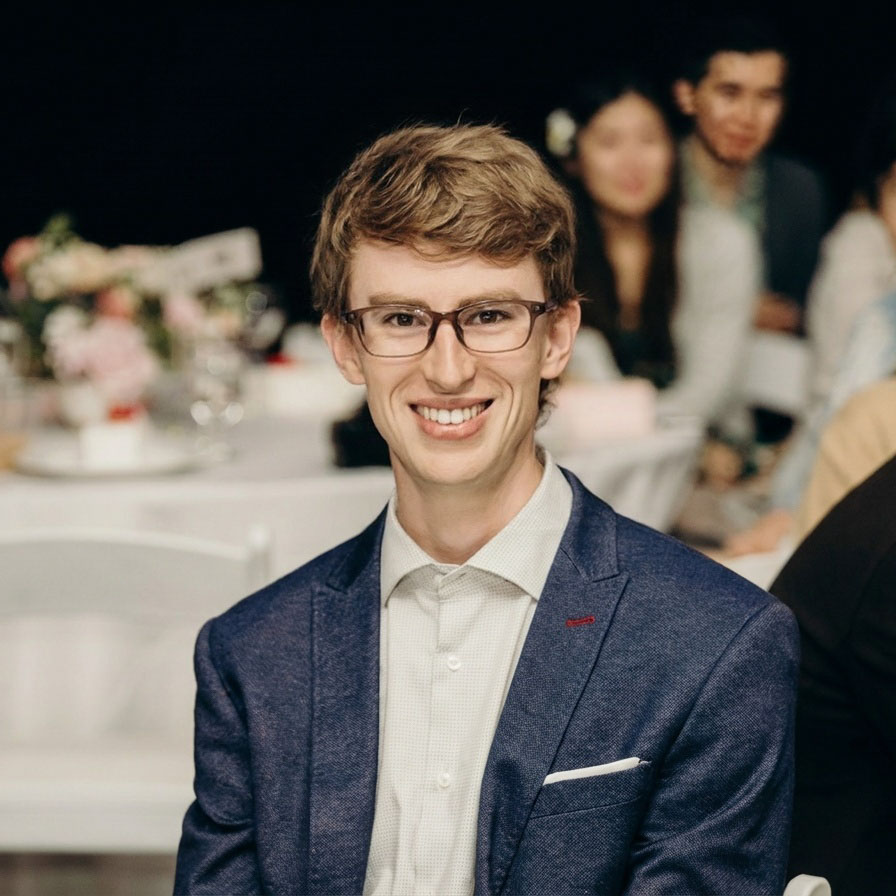
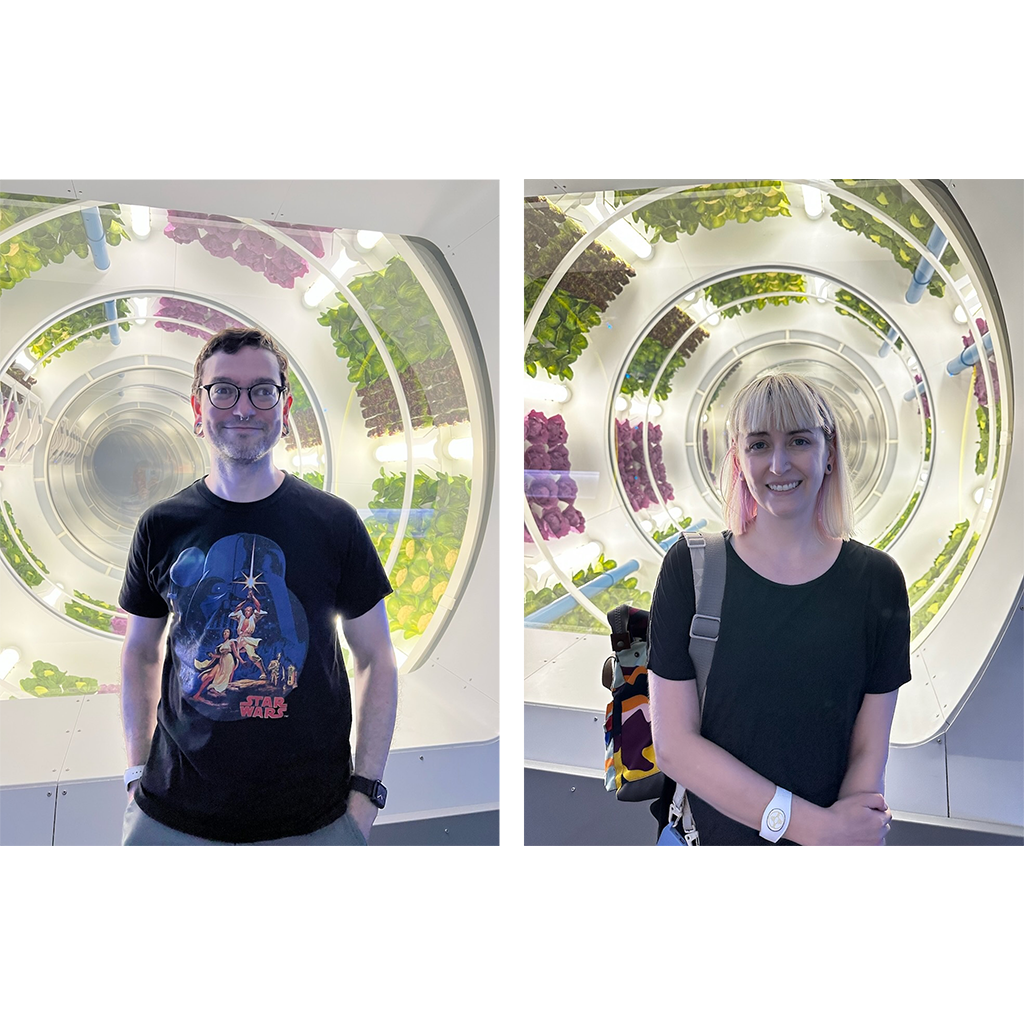
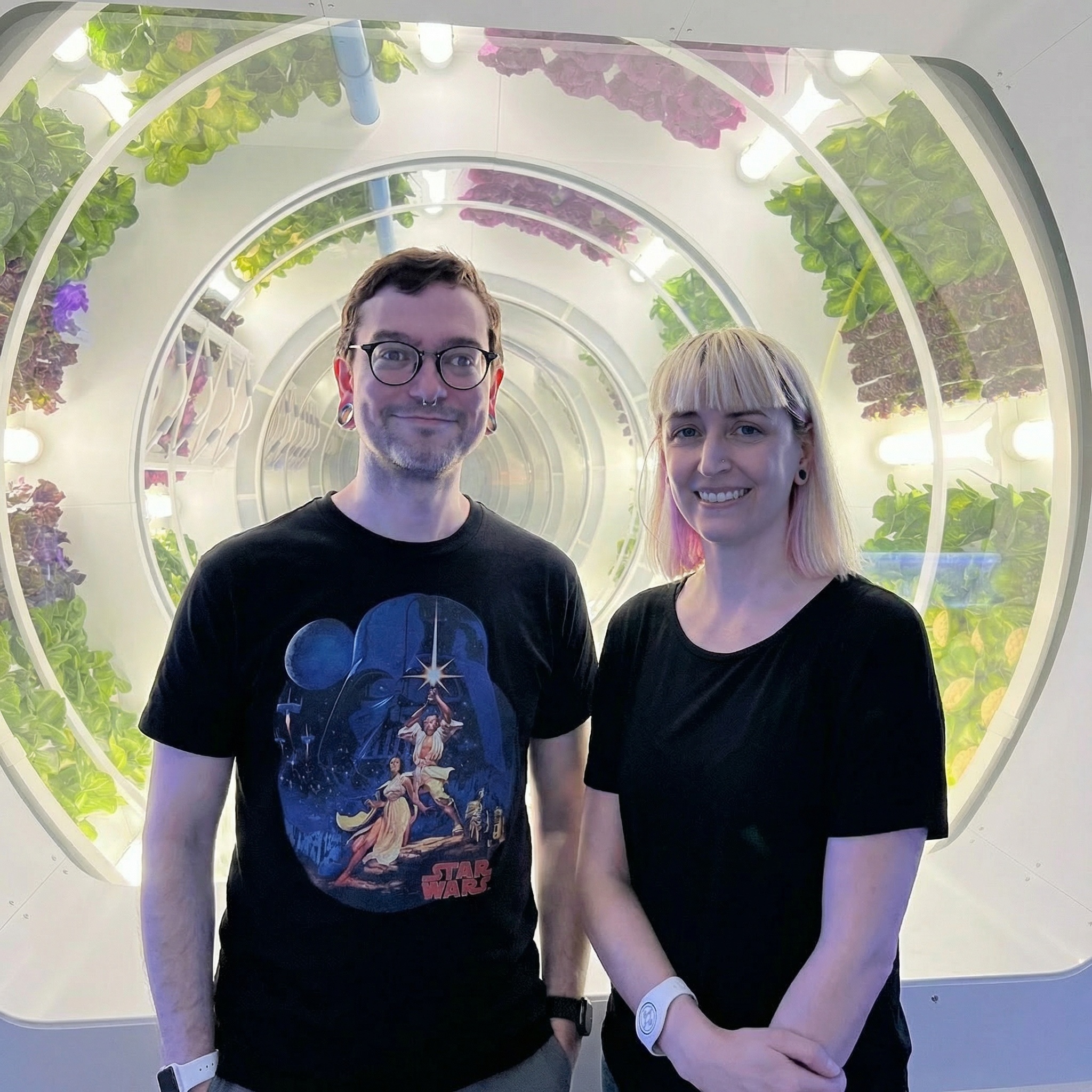
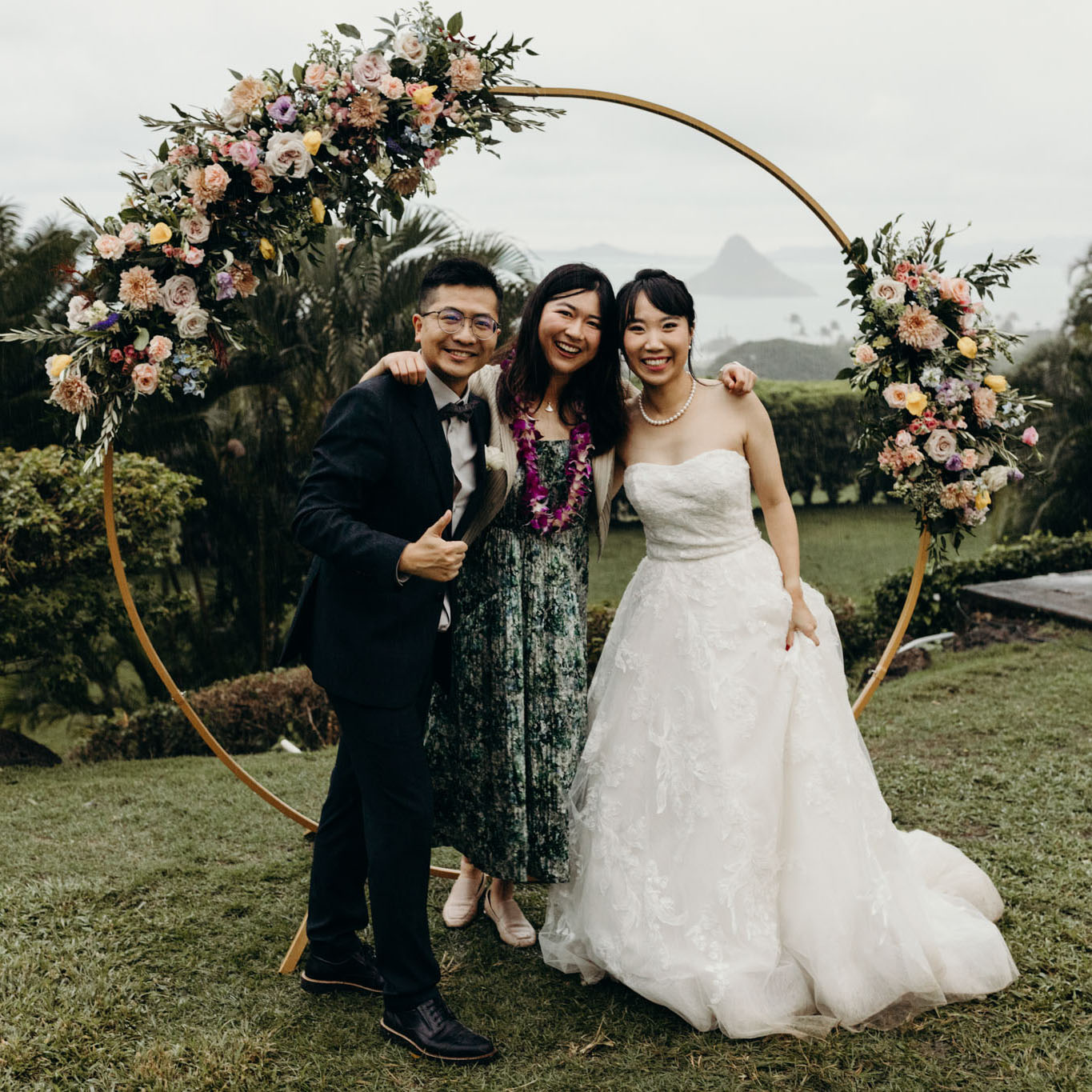
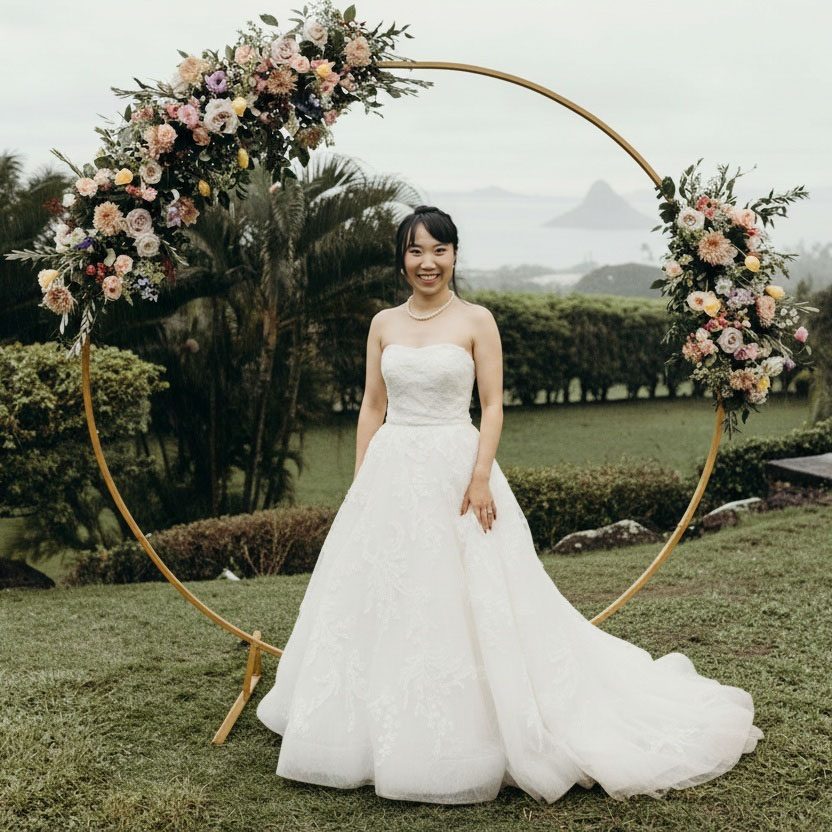
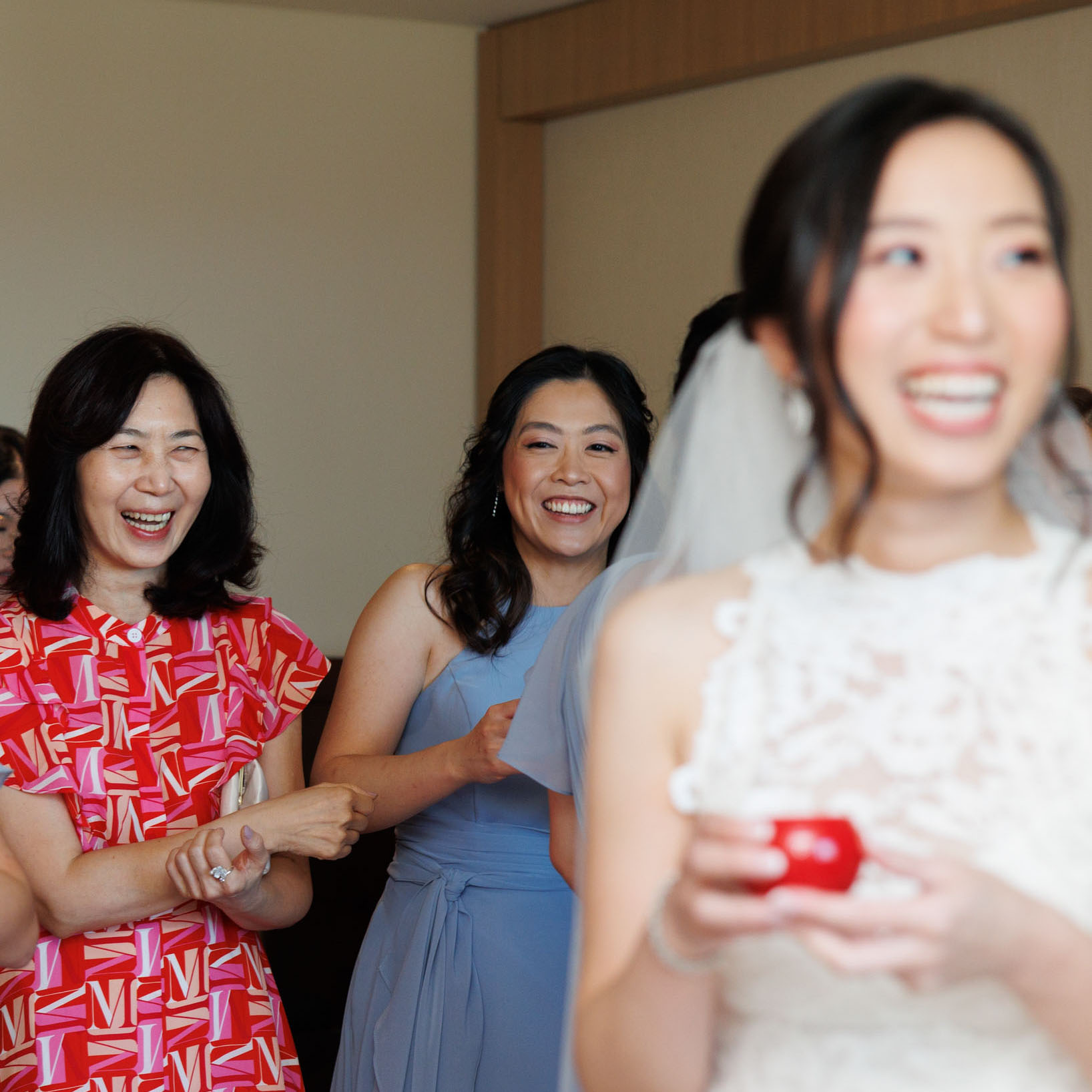
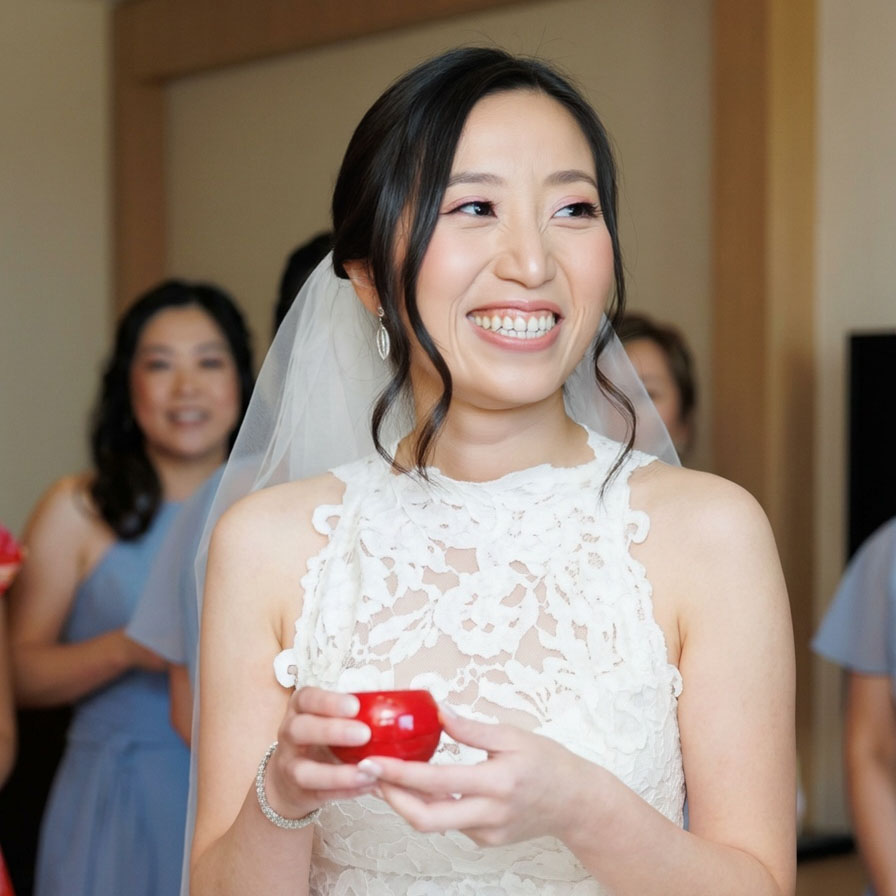
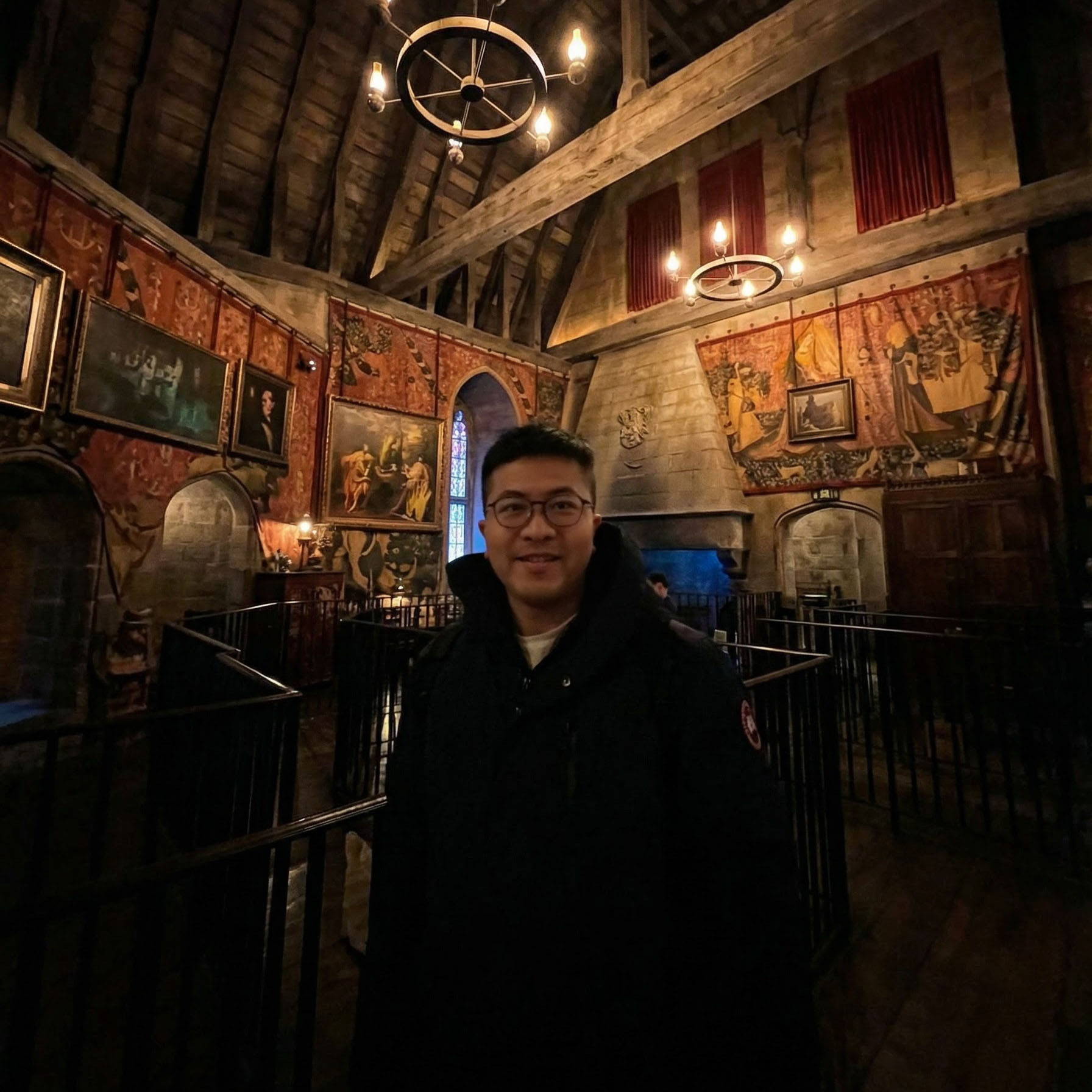
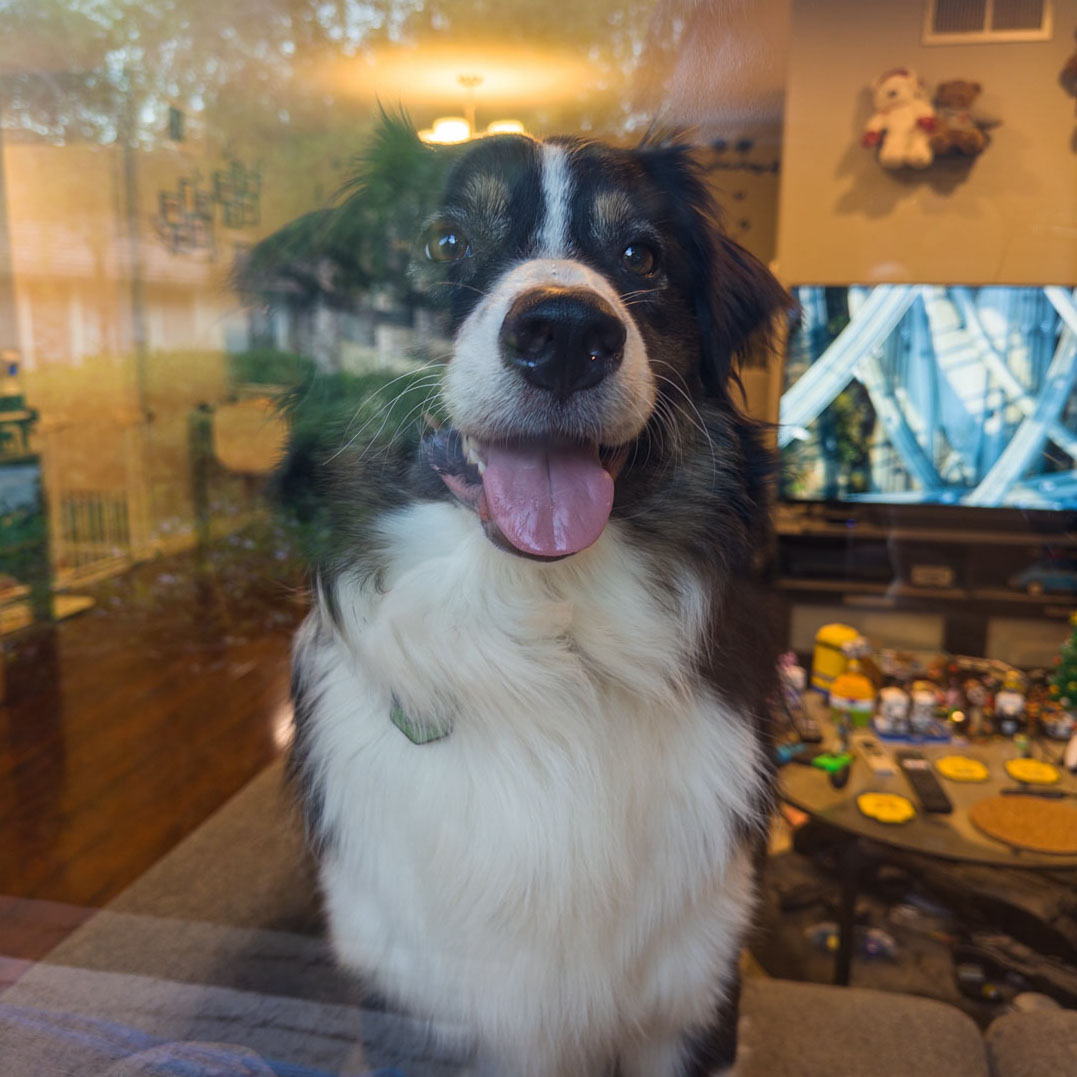
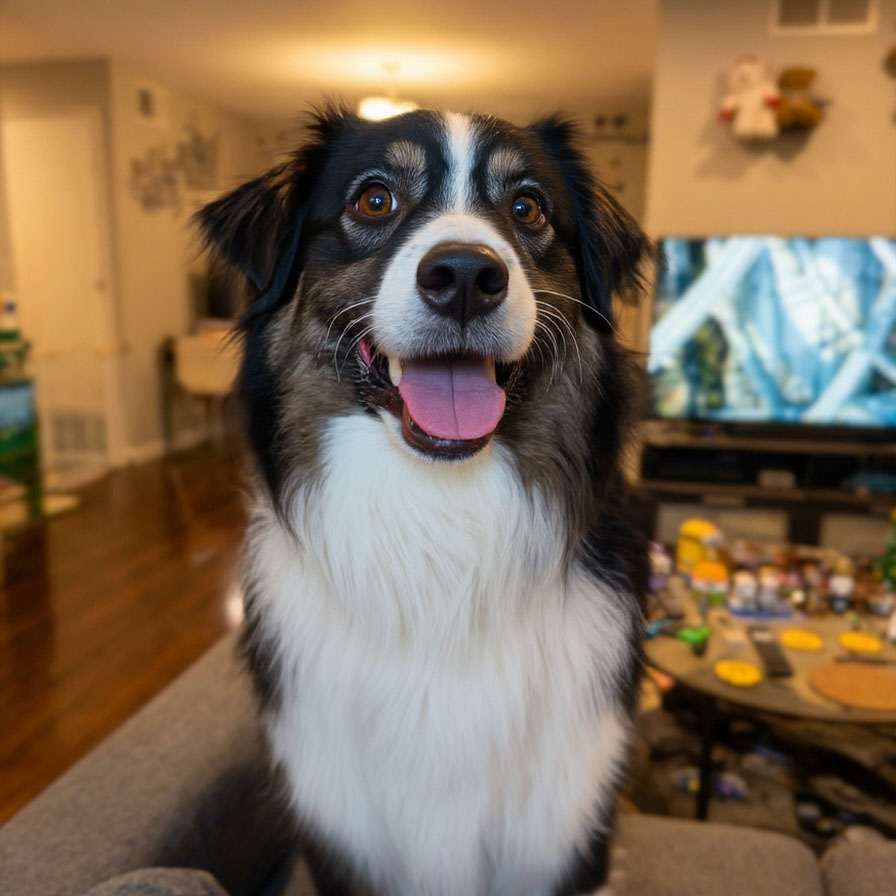
The `/edit` endpoint takes one or more input images and a text prompt, then produces a transformed version. When you
reference a profile, the person's identity is preserved even through dramatic transformations.

<div className="ba-carousel">
  <input type="radio" name="uc-edit-carousel" id="uc-edit-1" defaultChecked className="ba-radio" />

  <input type="radio" name="uc-edit-carousel" id="uc-edit-2" className="ba-radio" />

  <input type="radio" name="uc-edit-carousel" id="uc-edit-3" className="ba-radio" />

  <div className="ba-slides">
    <div className="ba-slide">
      <div className="ba-card ba-before">
        <img src="https://storage.googleapis.com/photaserverless/phota_api/docs/edit_before_8.jpg" alt="Input photo" />

        <span className="ba-label">Before</span>
      </div>

      <div className="ba-card ba-after">
        <img src="https://storage.googleapis.com/photaserverless/phota_api/docs/edit_after_8.jpg" alt="Edited output" />

        <span className="ba-label">After</span>
      </div>

      <span className="ba-prompt">"Make \[\[abc123]] look at the camera and create a portrait shot."</span>
    </div>

    <div className="ba-slide">
      <div className="ba-card ba-before">
        <img src="https://storage.googleapis.com/photaserverless/phota_api/docs/add_them_before.png" alt="Input photo" />

        <span className="ba-label">Before</span>
      </div>

      <div className="ba-card ba-after">
        <img src="https://storage.googleapis.com/photaserverless/phota_api/docs/add_them_after.jpg" alt="Edited output" />

        <span className="ba-label">After</span>
      </div>

      <span className="ba-prompt">"Combine \[\[abc123]] from the first image and \[\[def456]] from the second image in one group shot."</span>
    </div>

    <div className="ba-slide">
      <div className="ba-card ba-before">
        <img src="https://storage.googleapis.com/photaserverless/phota_api/docs/edit_before_6_1.jpg" alt="Input photo" />

        <span className="ba-label">Before</span>
      </div>

      <div className="ba-card ba-after">
        <img src="https://storage.googleapis.com/photaserverless/phota_api/docs/edit_after_6_1.jpg" alt="Edited output" />

        <span className="ba-label">After</span>
      </div>

      <span className="ba-prompt">"Convert to a solo portrait of \[\[abc123]]."</span>
    </div>
  </div>

  <div className="ba-controls">
    <label className="ba-arrow ba-arrow-left" />

    <label htmlFor="uc-edit-1" className="ba-dot" />

    <label htmlFor="uc-edit-2" className="ba-dot" />

    <label htmlFor="uc-edit-3" className="ba-dot" />

    <label className="ba-arrow ba-arrow-right" />
  </div>
</div>

**When to use it**: adding or removing people from group shots, adjusting camera angle or lighting, restyling scenes
and backgrounds, creating seasonal or themed variations - anything where the edit needs to look like the real person.

**How profiles help**: pass the user's profile IDs in `profile_ids` so the API knows which identities to preserve. The
API matches the people in the input photo to the provided profiles automatically. You can also use `[[profile_id]]` in
the prompt to reference a specific person explicitly, e.g. `"Make [[abc123]] smile wider"`.

**Example request body**:

```json theme={null}
{
  "prompt": "Make [[abc123]] smile wider",
  "images": ["https://example.com/photo.jpg"],
  "profile_ids": ["abc123"], # Optional, since profile_ids is mentioned in the prompt
  "base_model": "nb2", # Optional, defaults to "nb2" (Nano Banana 2)
  "aspect_ratio": "1:1",
  "resolution": "4K",
  "num_output_images": 2,
  "output_format": "jpg"
}
```

<Tip>
  You can control the output aspect ratio (e.g. `"9:16"`) and resolution (up to `"4K"`) on every request. See [Best practices](/guides/best-practices#use-aspect-ratio-and-resolution-controls).
</Tip>

<Tip>
  Switch the underlying image model per request with `base_model`. See [Base model selection](/guides/base-models) for
  the supported values.
</Tip>

***

## Generate -- create new images from scratch

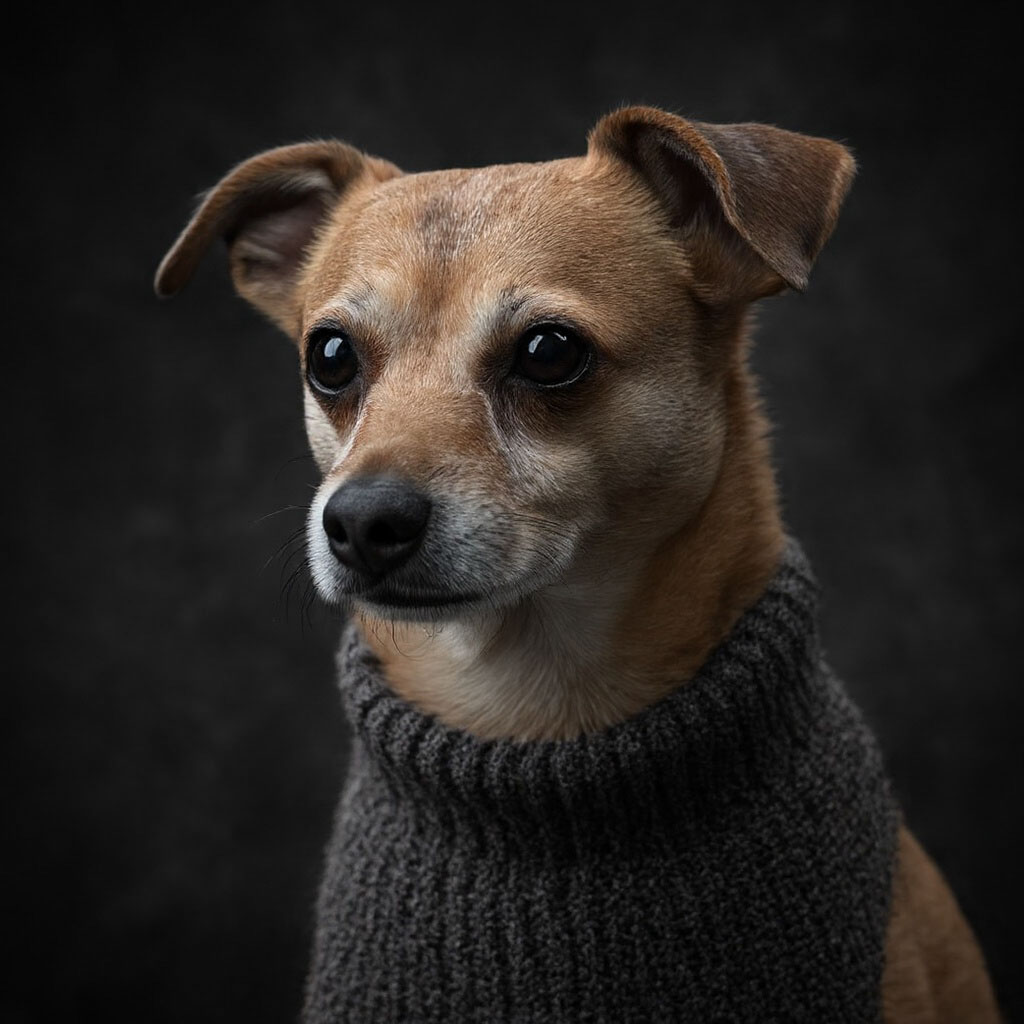
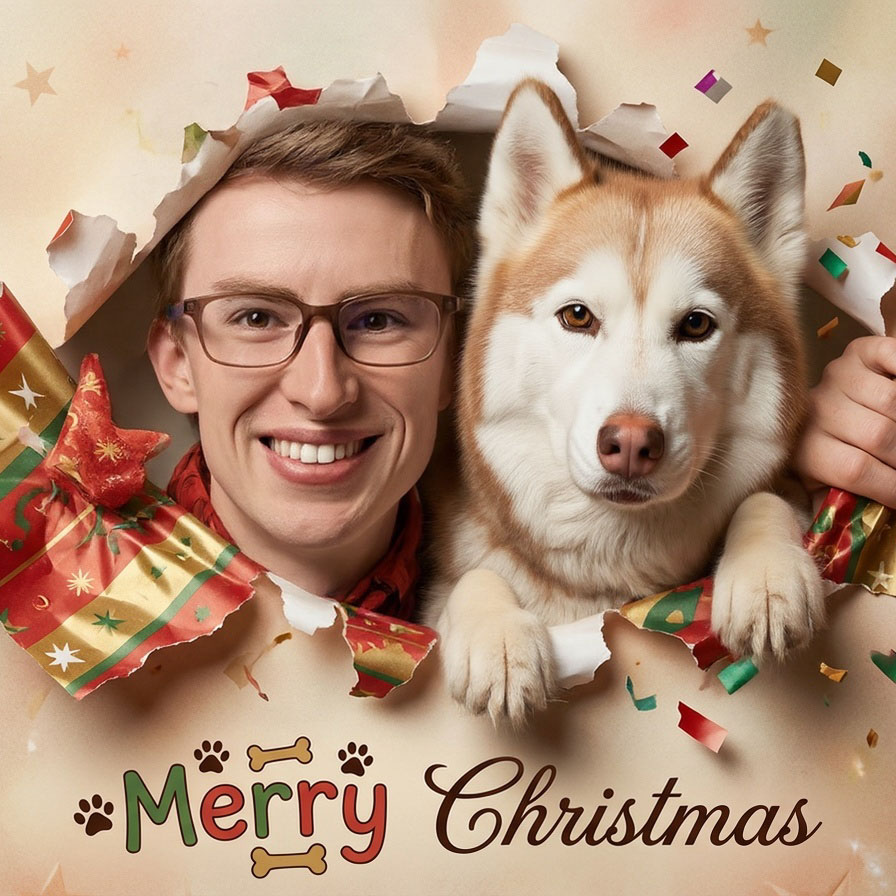
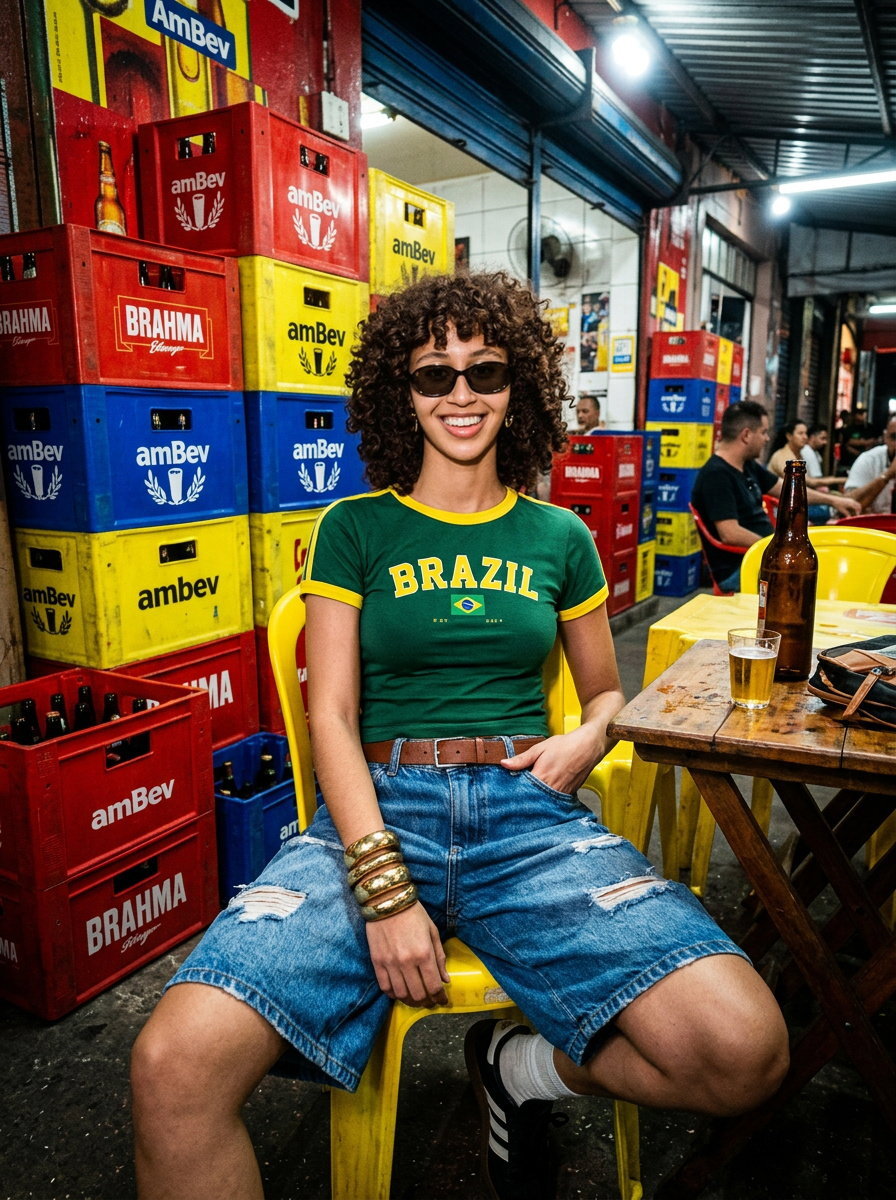
The `/generate` endpoint creates images from a text prompt alone -- no input image is needed. When you reference a
profile, the generated person looks exactly like the actual person (or pet).

<div className="ba-carousel ba-carousel-compact">
  <input type="radio" name="uc-gen-carousel" id="uc-gen-1" defaultChecked className="ba-radio" />

  <input type="radio" name="uc-gen-carousel" id="uc-gen-2" className="ba-radio" />

  <input type="radio" name="uc-gen-carousel" id="uc-gen-3" className="ba-radio" />

  <div className="ba-slides">
    <div className="ba-slide ba-slide-single">
      <div className="ba-card ba-after">
        <img src="https://storage.googleapis.com/photaserverless/phota_api/docs/gen_nash_1.jpg" alt="Generated image" />

        <span className="ba-label">Phota</span>
      </div>

      <span className="ba-prompt">"Artistic Noir Studio Headshot of \[\[abc123]], chest up. Introspective expression, gaze directed slightly off-camera, subtle three-quarter head tilt."</span>
    </div>

    <div className="ba-slide ba-slide-single">
      <div className="ba-card ba-after">
        <img src="https://storage.googleapis.com/photaserverless/phota_api/docs/gen_card_0_1.jpg" alt="Generated image" />

        <span className="ba-label">Phota</span>
      </div>

      <span className="ba-prompt">"Playful, photorealistic portrait of \[\[abc123]] and \[\[def456]], emerging through torn festive paper. Their hands emerge through the torn paper, holding the edges as if the subjects are emerging from the paper."</span>
    </div>

    <div className="ba-slide ba-slide-single">
      <div className="ba-card ba-after">
        <img src="https://storage.googleapis.com/photaserverless/phota_api/docs/gen_pro_portrait_1.jpg" alt="Generated image" />

        <span className="ba-label">Phota</span>
      </div>

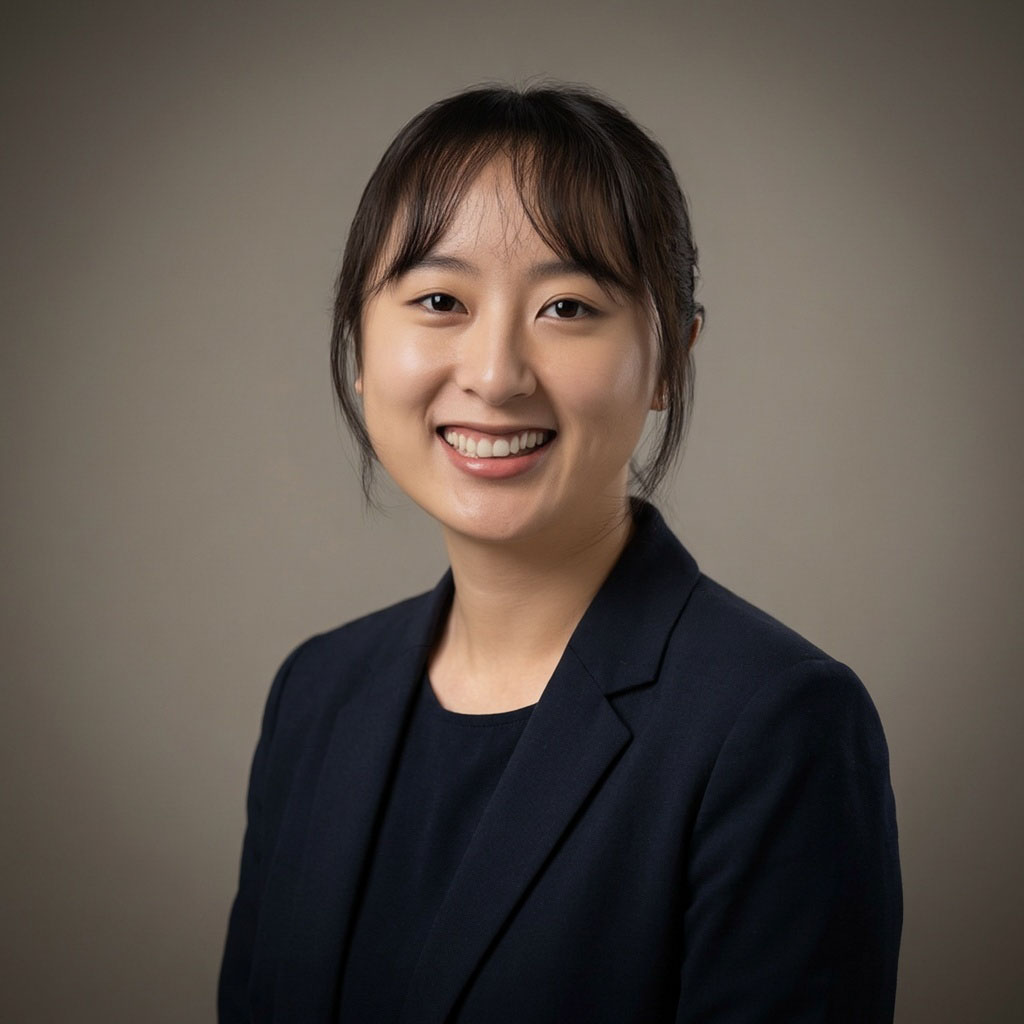
      <span className="ba-prompt">"Professional corporate headshot of \[\[abc123]]. Off-center to the right, smiling at camera, confident expression."</span>
    </div>
  </div>

  <div className="ba-controls">
    <label className="ba-arrow ba-arrow-left" />

    <label htmlFor="uc-gen-1" className="ba-dot" />

    <label htmlFor="uc-gen-2" className="ba-dot" />

    <label htmlFor="uc-gen-3" className="ba-dot" />

    <label className="ba-arrow ba-arrow-right" />
  </div>
</div>

**When to use it**: professional headshots, holiday cards and family portraits, profile pictures in any setting or style,
couple and group photos where everyone doesn't need to be in the same room — any scenario where you need a photo-realistic image of specific people.

**How profiles help**: the generated person matches the trained profile's appearance -- face shape, features, hair, and
skin tone are all preserved. Reference profiles directly in the prompt with `[[profile_id]]` syntax.

**Example request body**:

```json theme={null}
{
  "prompt": "A professional headshot of [[abc123]] in a modern office",
  "base_model": "nb2", # Optional, defaults to "nb2" (Nano Banana 2)
  "num_output_images": 4,
  "output_format": "jpg"
}
```

<Tip>
  Generation is non-deterministic — set `num_output_images` to 2–4 and let the user pick the best result.
</Tip>

<Note>
  The `/generate` endpoint does not accept `images` or `profile_ids`. Reference profiles in the prompt with
  `[[profile_id]]` syntax instead. If you need to transform an existing photo, use `/edit`.
</Note>

***

## Enhance -- automatic quality improvement

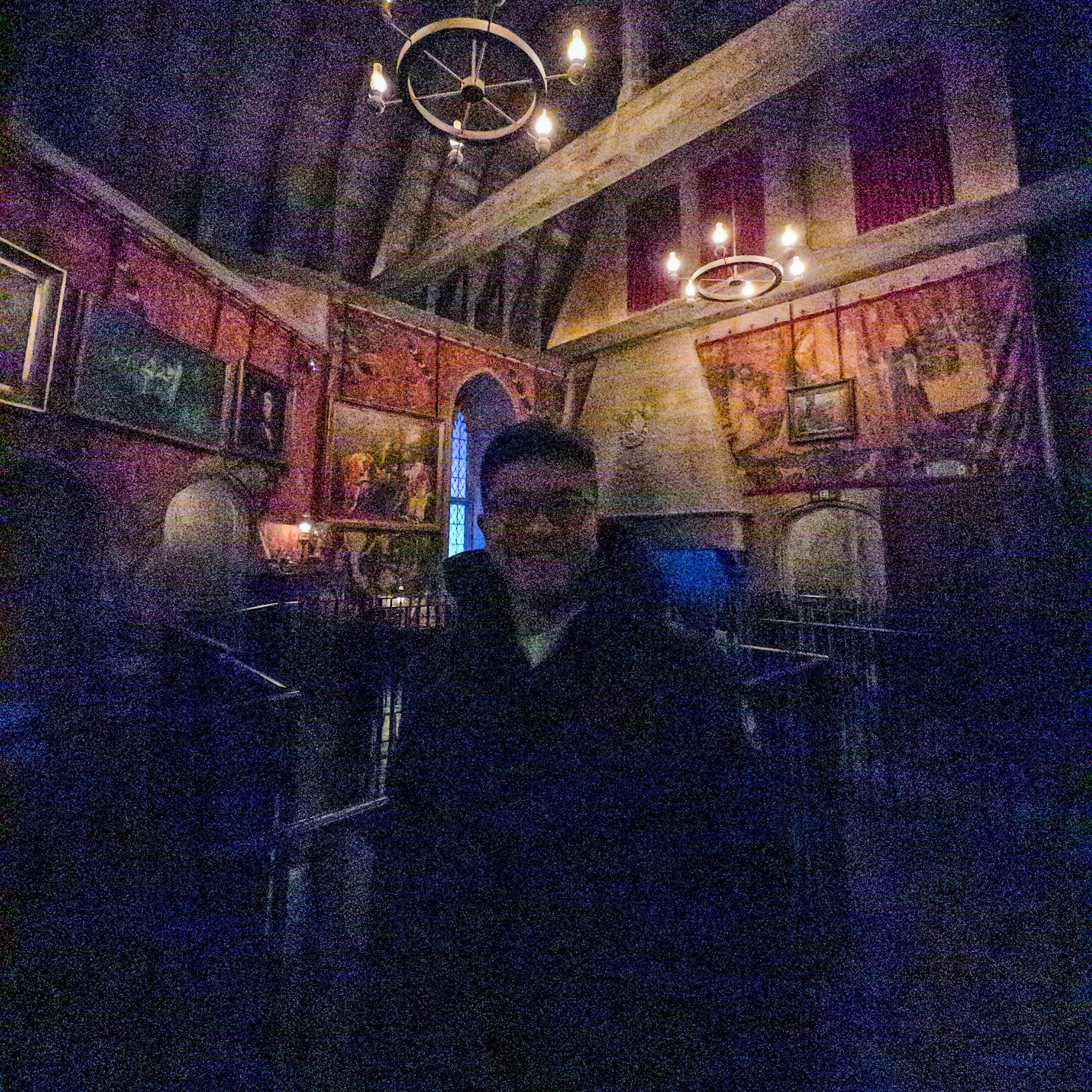
The `/enhance` endpoint improves a photo automatically -- no text prompt, no parameters to tune. Unlike most AI image
services, Phota infers all enhancement parameters on its own: lighting, sharpness, color balance, and overall quality.

<div className="ba-carousel">
  <input type="radio" name="uc-enhance-carousel" id="uc-enhance-1" defaultChecked className="ba-radio" />

  <input type="radio" name="uc-enhance-carousel" id="uc-enhance-2" className="ba-radio" />

  <input type="radio" name="uc-enhance-carousel" id="uc-enhance-3" className="ba-radio" />

  <div className="ba-slides">
    <div className="ba-slide">
      <div className="ba-card ba-before">
        <img src="https://storage.googleapis.com/photaserverless/phota_api/docs/enhance_before_1.jpg" alt="Original photo" />

        <span className="ba-label">Before</span>
      </div>

      <div className="ba-card ba-after">
        <img src="https://storage.googleapis.com/photaserverless/phota_api/docs/enhance_after_1.jpg" alt="Enhanced photo" />

        <span className="ba-label">After</span>
      </div>
    </div>

    <div className="ba-slide">
      <div className="ba-card ba-before">
        <img src="https://storage.googleapis.com/photaserverless/phota_api/docs/enhance_before_2.jpg" alt="Original photo" />

        <span className="ba-label">Before</span>
      </div>

      <div className="ba-card ba-after">
        <img src="https://storage.googleapis.com/photaserverless/phota_api/docs/enhance_after_2.jpg" alt="Enhanced photo" />

        <span className="ba-label">After</span>
      </div>
    </div>

    <div className="ba-slide">
      <div className="ba-card ba-before">
        <img src="https://storage.googleapis.com/photaserverless/phota_api/docs/enhance_before_3.jpg" alt="Original photo" />

        <span className="ba-label">Before</span>
      </div>

      <div className="ba-card ba-after">
        <img src="https://storage.googleapis.com/photaserverless/phota_api/docs/enhance_after_3.jpg" alt="Enhanced photo" />

        <span className="ba-label">After</span>
      </div>
    </div>
  </div>

  <div className="ba-controls">
    <label className="ba-arrow ba-arrow-left" />

    <label htmlFor="uc-enhance-1" className="ba-dot" />

    <label htmlFor="uc-enhance-2" className="ba-dot" />

    <label htmlFor="uc-enhance-3" className="ba-dot" />

    <label className="ba-arrow ba-arrow-right" />
  </div>
</div>

**When to use it**: photos taken in poor lighting, blurry or noisy images, photos with compression artifacts — any photo where quality fell short.

**How profiles help**: when profile IDs are provided, enhancement preserves and can improve the rendering of known faces
in the photo.

**Example request body**:

```json theme={null}
{
  "image": "https://example.com/photo.jpg",
  "profile_ids": ["abc123"],
  "num_output_images": 2,
  "output_format": "jpg"
}
```

***

## Remix -- restyle with a reference image

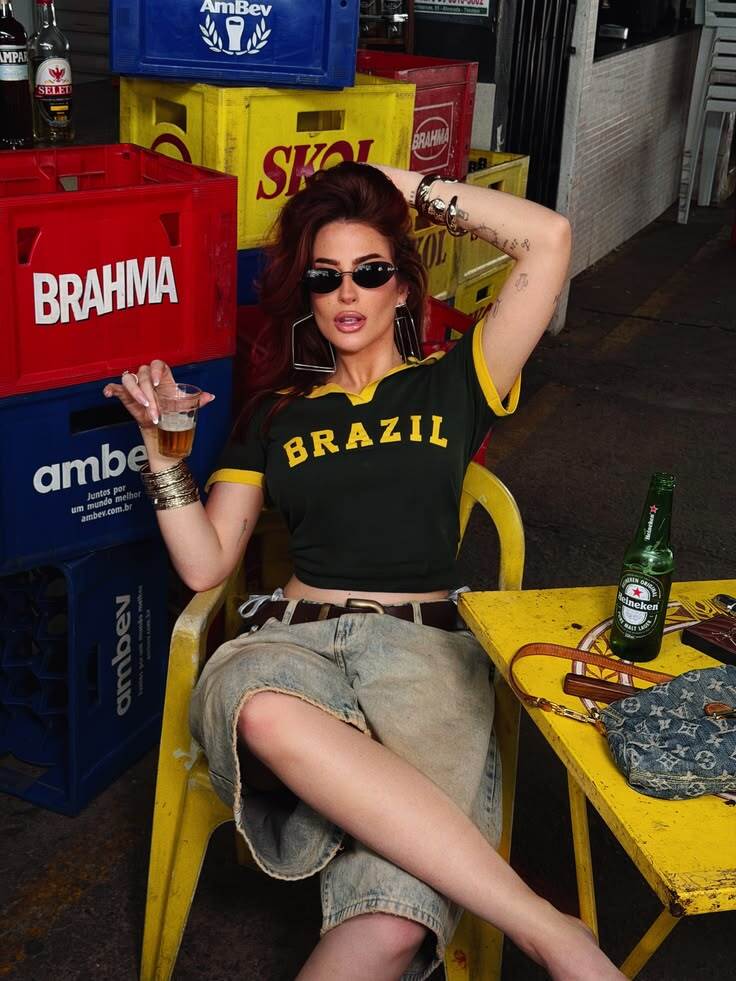
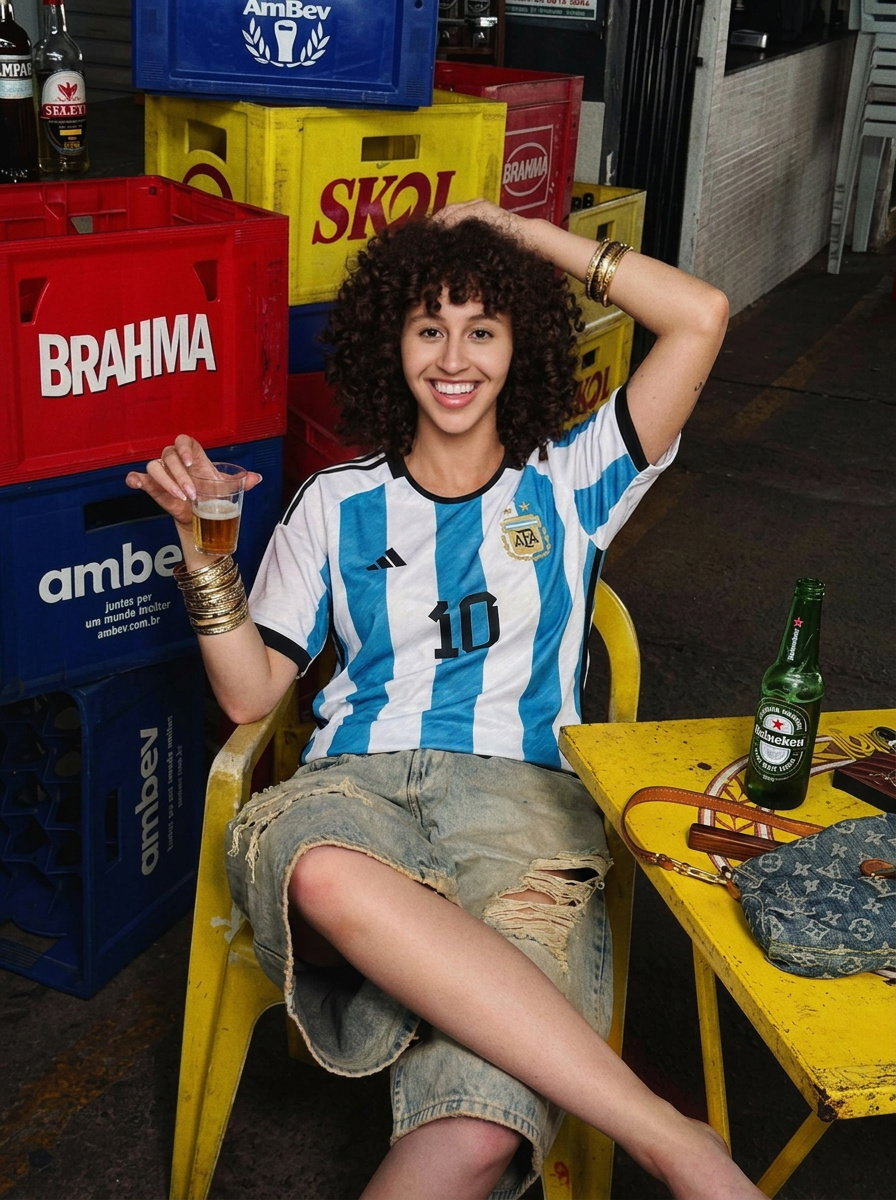
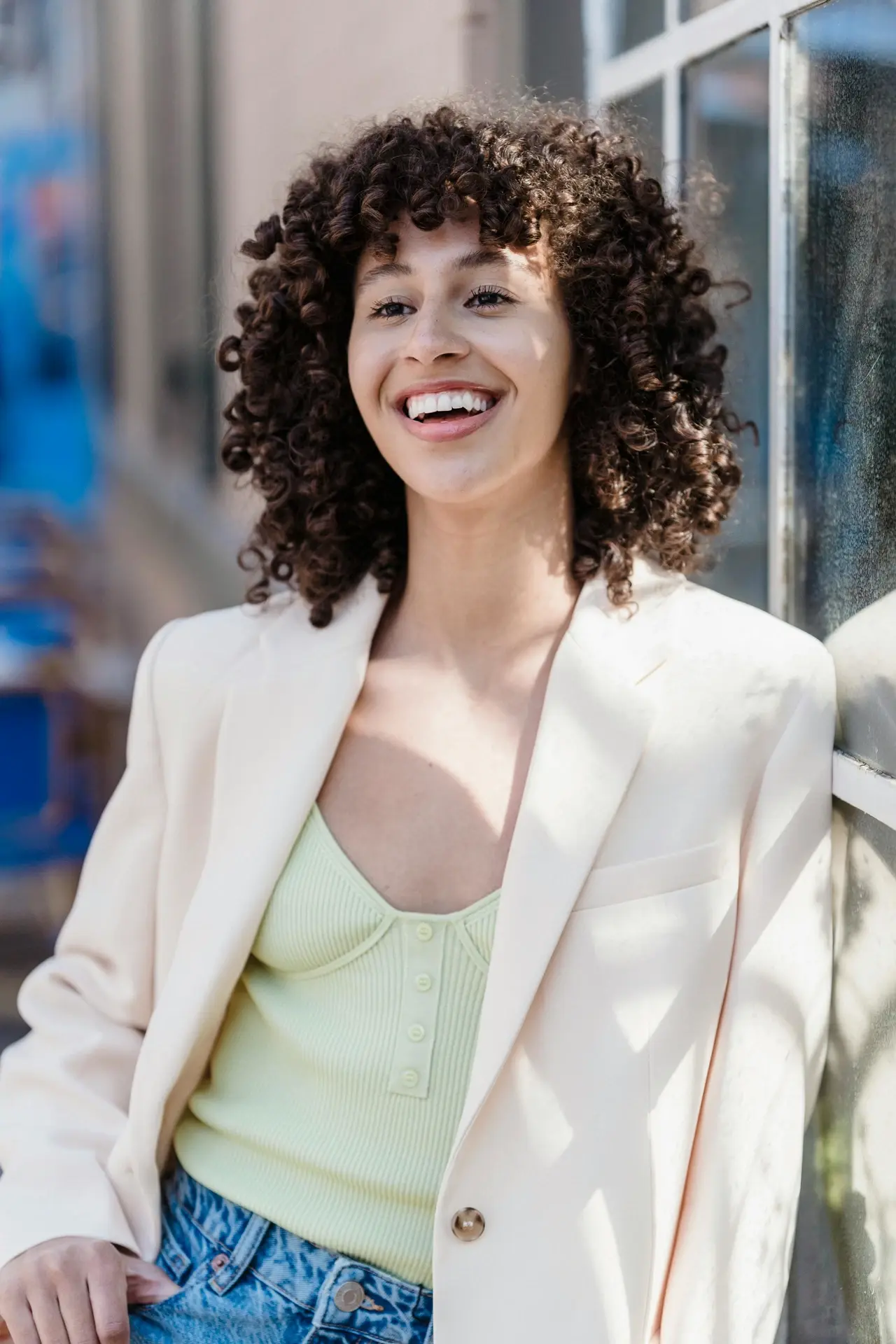
The `/remix` endpoint takes an input image (the content) and a reference image (the style), and produces your photo
rendered in the reference's look — lighting, palette, mood, and artistic treatment. No prompt needed, though an
optional `prompt` can steer the result (second slide).
<div className="ba-remix-eq">
  <div className="ba-remix-inputs">
    <div className="ba-card ba-before">
      <img src="https://assets.photalabs.com/phota_api/docs/remix-input.webp" alt="Input photo" />

      <span className="ba-label">Input</span>
    </div>

    <span className="ba-op">+</span>

    <div className="ba-card ba-before">
      <img src="https://assets.photalabs.com/phota_api/docs/remix-style.jpg" alt="Style reference" />

      <span className="ba-label">Reference</span>
    </div>
  </div>

  <span className="ba-op ba-op-stack">=</span>

  <div className="ba-carousel ba-remix-output">
    <input type="radio" name="uc-rmx-out" id="uc-rmx-out-1" defaultChecked className="ba-radio" />

    <input type="radio" name="uc-rmx-out" id="uc-rmx-out-2" className="ba-radio" />

    <div className="ba-slides">
      <div className="ba-slide ba-slide-single">
        <div className="ba-card ba-after">
          <img src="https://assets.photalabs.com/phota_api/docs/remix-out-no-instruct.jpg" alt="Remixed output" />

          <span className="ba-label">Output</span>
        </div>

        <span className="ba-prompt">No prompt — pure style transfer</span>
      </div>

      <div className="ba-slide ba-slide-single">
        <div className="ba-card ba-after">
          <img src="https://assets.photalabs.com/phota_api/docs/remix-out-with-instruct.jpg" alt="Remixed output steered by a prompt" />

          <span className="ba-label">Output</span>
        </div>

        <span className="ba-prompt">Prompt: "no sunglasses; let her wear an argentina jersey instead, same pose as in reference"</span>
      </div>
    </div>

    <div className="ba-controls">
      <label className="ba-arrow ba-arrow-left" />

      <label htmlFor="uc-rmx-out-1" className="ba-dot" />

      <label htmlFor="uc-rmx-out-2" className="ba-dot" />

      <label className="ba-arrow ba-arrow-right" />
    </div>
  </div>
</div>

**When to use it**: applying a brand's visual style to user photos, themed photo features (film looks, editorial
styles, seasonal treatments), matching new shots to an existing campaign's aesthetic.

**How profiles help**: pass profile IDs in `profile_ids` and recognized people keep their real likeness through the
restyle.

**Example request body**:

```json theme={null}
{
  "input_image": "https://example.com/photo.jpg",
  "reference_image": "https://example.com/reference.jpg",
  "profile_ids": ["abc123"],
  "num_output_images": 2,
  "output_format": "jpg",
  "response_mode": "urls"
}
```

See the [Remix guide](/guides/remix) for the full walkthrough.

***

## Next steps

<CardGroup cols={2}>
  <Card title="Profiles guide" icon="user-group" href="/guides/profiles">
    Learn how to create and manage profiles for identity preservation.
  </Card>

  <Card title="Quickstart" icon="rocket" href="/api/quickstart">
    Walk through the full workflow with code examples.
  </Card>

  <Card title="API reference" icon="code" href={API_REFERENCE_URL}>
    Explore the full endpoint documentation.
  </Card>
</CardGroup>